Try a local agent on a modest laptop
Time: about 20 minutes, plus a 1.4 GB model download · You need: ParleML running (Run ParleML), Ollama installed, and 16 GB of RAM. For Claude Code, the extended image. You'll end with: an agent profile that runs on a local model, checked end to end, and a clear idea of what a small model can and can't do.
This is a setup and smoke test, not a model-quality benchmark. You connect Codex or Claude Code to a small model served by Ollama, check that everything is reachable, and try one small task. You don't train a model. A laptop without a suitable GPU can handle small tasks, but a full agent workflow may exceed its memory or your patience.
What we observed: small models don't finish full workflows
On a 16 GB Windows laptop with no GPU, qwen3:1.7b answered a direct chat fine, and both
profiles passed every readiness check. But neither Codex nor Claude Code completed a real
ParleML task with Ollama's default 4,096-token context: the prompt was cut short and the
model never made a working tool call. Details at the end of this page.
1. Check the Ollama server
- Start the Ollama application.
-
In a new PowerShell window, list the installed models and query the server:
ollama listInvoke-RestMethod http://127.0.0.1:11434/api/tags
An empty list means Ollama is running with no models installed. A connection error means
the server is stopped or the address is wrong. If ollama isn't recognised right after
installing, open a new PowerShell window.
2. Check that there is enough memory
- Close other heavy applications. Don't start while nearly all RAM is in use.
- Don't run training, several agents or several loaded models at the same time.
Runtime memory is larger than the download size. Stop if the machine starts paging or stops responding.
3. Download and test a small model
For a deliberately small test, use Qwen3 1.7B: it supports tool calls and is about a 1.4 GB download. It is a connectivity test, not a promise of reliable autonomous ML work.
-
Download it:
ollama pull qwen3:1.7b -
Ask it one sentence. The first answer can take a while on CPU:
ollama run qwen3:1.7b "Reply with one short sentence: local inference is working. /no_think" -
Check that it is loaded, then unload it (its files stay installed):
ollama psollama stop qwen3:1.7b
Details: context length
Ollama recommends at least 64k context for coding agents. A small-context setup can answer the sentence above and still fail once the agent CLI adds its tool definitions and ParleML's skills. A larger context needs more memory, so don't raise it to 64k on a constrained laptop without checking. If the full prompt doesn't fit, use a stronger local server or keep a cloud profile for larger work. See Ollama's context configuration.
4. Create a local profile
- Open Settings → Profiles, open your working profile and choose Duplicate. Name the copy Local laptop. Keep its skill packs and its ParleML connection.
- Under Runtime · agents, caps & skill pins, choose Codex or Claude Code.
- Set Model provider to Ollama (local).
- Set Local server URL to an address the ParleML backend can reach (see the note below).
- Choose Check server and list models, then pick
qwen3:1.7bas Local model. The check lists what is installed without loading the model. - Leave the tier overrides empty. For the first try, set Steps at once to
1, Max turns to4and Wall clock (seconds) to180. These are limits for an experiment, not expected times. - Expand Advanced · connections & host assets and leave Include account apps (Codex and Claude Code) off. Keep the ParleML connection, skills, rules and hooks. This leaves out unrelated account app definitions without shortening your prompts.
- Remove any cloud per-skill pins and leave the other agents unselected.
- Save, then run Preflight.
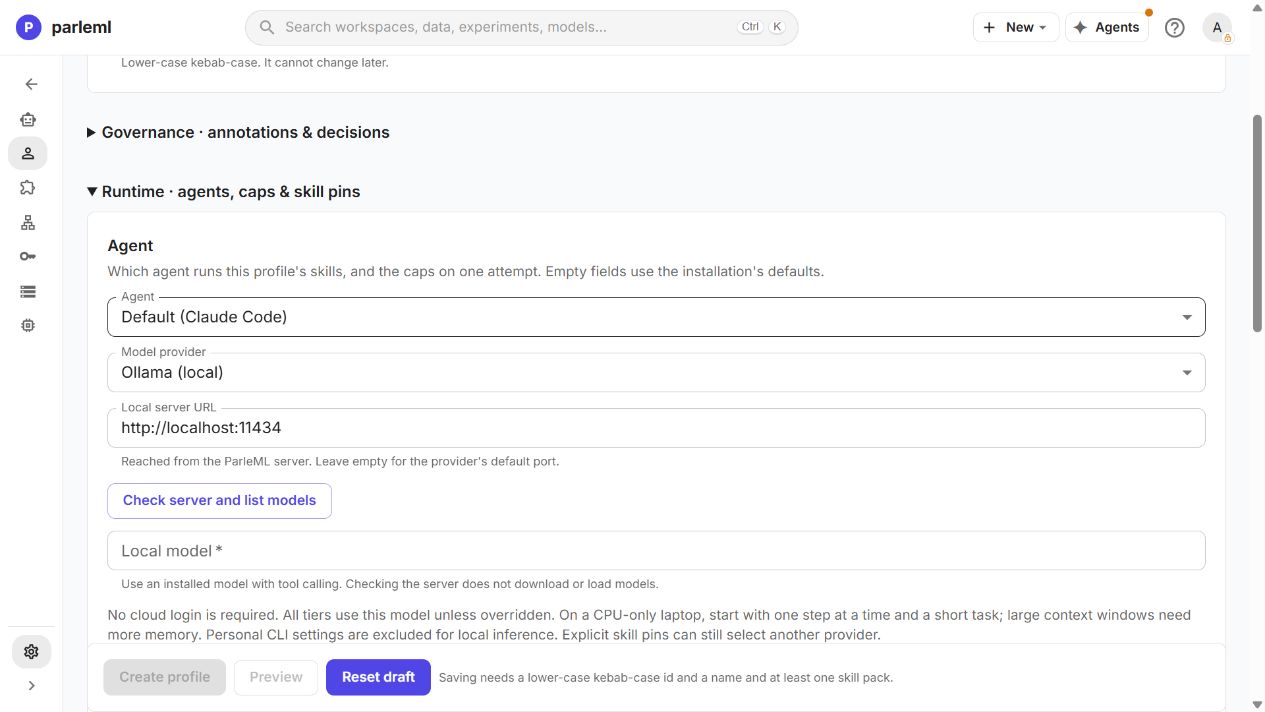
The screenshot shows the unsaved form before a model is chosen. The readiness result should
say that no cloud sign-in is needed. You don't need Include my own settings or any change
to config.toml.
Which server address to use
The address is reached by the ParleML backend, not by your browser.
- ParleML in Docker Desktop (Windows or macOS): the container's
localhostis the container itself. Usehttp://host.docker.internal:11434. - ParleML installed directly on the laptop: use
http://127.0.0.1:11434, as in the recorded test.
The agent CLI (Codex or Claude Code) runs where the backend runs. The standard image includes Codex; Claude Code needs the extended image.
5. Try one small task
- Open a small existing workspace and pick Local laptop in its Agent profile menu.
-
Choose Ask an agent and a short review task the profile offers. For example:
Read the workspace brief. Tell me the objective and one question we still need to answer, in at most five sentences. Do not train a model, change data, or launch child tasks.
-
Watch the session, open any tool calls, and compare the answer with the saved brief.
A useful answer reflects the brief and invents nothing. If the model can't call tools, runs out of context or hits the time limit, stop and read the reported error. A longer timeout won't fix too little memory or unreliable tool calls.
6. Clean up
-
Release the model's memory:
ollama stop qwen3:1.7b -
Switch the workspace back to your usual profile when you need it.
A running session keeps its configuration, but resuming a session reloads its original profile's current configuration. Start a new session when you switch providers.
What we observed (16 October 2026)
Details: the recorded laptop test
Machine. A Windows laptop with 16 GB RAM, about 2 GB free before inference, and no GPU
offload. ParleML ran directly on the laptop, with Ollama at http://127.0.0.1:11434.
What passed. qwen3:1.7b (Q4_K_M) answered a short direct Ollama chat in 15 seconds,
including loading. Both saved profiles passed the CLI, local-sign-in readiness and MCP
connection checks, and model discovery worked in the UI.
What failed. The full ml-investigate workflow did not pass with Ollama's
4,096-token context. The task was to read a test workspace's business goal and repeat its
validation marker, without training or changing data.
| Agent | Observed result |
|---|---|
| Codex 0.162.1 | Ollama cut a 45,731-token prompt to 2,050 tokens. The model claimed it had read the workspace without making a tool call and left out the marker. ParleML marked the session failed because it never reported an outcome. |
| Claude Code 2.1.293 | Ollama cut a 14,694-token prompt to 2,050 tokens. The session made no successful workspace tool call and hit its 180-second limit. |
Readiness checks can't detect every prompt the server cuts short. A correct answer needs both enough context and reliable tool use. The model was unloaded afterwards; its files stayed installed.
Details: the retry with account apps left out
With account apps excluded, the full Codex prompt fell to 13,853 tokens. The same 4k-context model still cut it to 2,050 tokens, invented workspace details without a tool call, and never reported an outcome. The retry took about 91 seconds, with at least 1,956 MB of RAM free in the samples.
Claude Code's retry sent about 14,700 tokens, still cut to 2,050. It reached its 180-second limit without a successful workspace read; its lowest free RAM was 2,027 MB. The account-app switch barely changes the local Claude Code prompt, because it had no account connectors to begin with. Both retries ran one after the other, with a 900 MB free-RAM stop threshold, and the model was unloaded afterwards.
The request and all ten skill files were unchanged, and both profiles passed preflight. Leaving out account apps keeps the explicit tools and profile capabilities; it removes only automatically discovered account apps and their host instructions.
An earlier Claude Code attempt with 32k context and a 900-second timeout was stopped when free RAM fell to 344 MB during loading. A separate minimal Claude Code tool-chain test passed, and a minimal Codex test failed validation. Those small tests don't show that the full workflow can run on this model. Don't work around the context limit by quietly removing skills, tool definitions or briefing instructions.
Next
- Local models with Ollama or LM Studio: LM Studio, model tiers, endpoint troubleshooting and configuration examples.
- Account apps and context isolation: what leaving out account apps changes, and what it doesn't.