Datasets and columns
In short
- Add a dataset from a file, a sample, a knowledge-base recipe or an agent. ParleML profiles every column (this is the EDA, exploratory data analysis).
- On the Columns tab, tell ParleML what each field means: its role and its domain (an email, a ZIP code, prose). The right domain is often worth more than a better algorithm.
- Before you train, check Leakage and run the Signal check: a zero-shot model tells you in seconds whether the target can be learned at all.
- Knowledge bases join tables from many sources with SQL, and recipes turn a join into a training table that is checked for look-ahead leaks.
This page uses the included Insurance claims fraud sample throughout.
Add a dataset
| Source | How |
|---|---|
| A file | Datasets → Add dataset, or New → Dataset. Upload a CSV, TSV or Parquet file, or give a path on the server. If the target is in a separate file, tick Target is in a separate file (X / y split). |
| A sample | Sample datasets on Home creates a workspace around an included example. |
| A recipe | A knowledge-base recipe runs a SELECT over the workspace's tables and saves the result as a new dataset. The dataset header then says Built from recipe "…" and links back to it. |
| An agent | An agent prepares a training table through a recipe. The header shows Made by with the skill and the session that made it. |
After you add a dataset, choose Run EDA. You pick the scope: the entire table, or a random 20,000-row sample for a quick first look at a very large one. ParleML also asks for the target; leave it empty for unsupervised work. Rerun EDA repeats the profile.
The dataset page
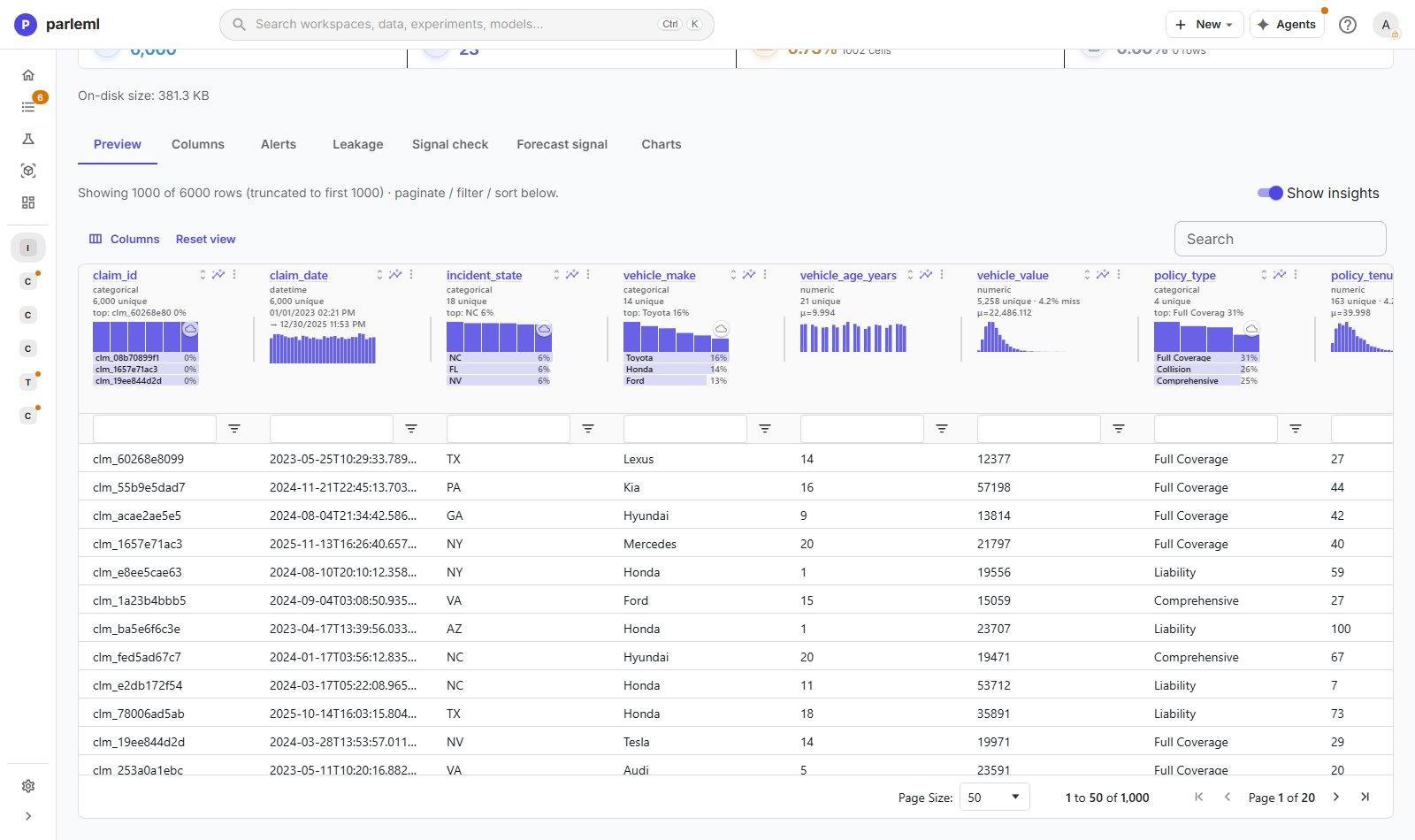
The header holds what applies to the whole dataset:
- Target, saved as soon as you change it;
- Rerun EDA, and New experiment, whose menu starts any kind with this dataset selected;
- Edit for the dataset's details, and Ask an agent;
- its lineage: the recipe it was built from, or the session that made it;
- four tiles: Rows, Columns, Missing cells and Duplicate rows.
Seven tabs follow: Preview, Columns, Alerts, Leakage, Signal check, Forecast signal and Charts.
Preview: the data with its profile
Preview shows the first 1,000 rows in a grid you can sort, filter, resize and pin. Turn on Show insights and every column header gains its profile:
- the number of distinct values and the missing share;
- the mean for numbers;
- a small histogram for numbers, or the top values and their share for categories.
Select a column name, or its Open Insight icon, to open the column's full drill-down.
Drill into a column
The Insight view shows every statistic the profiler computed for one field. Open it from a column name on Preview or Columns.
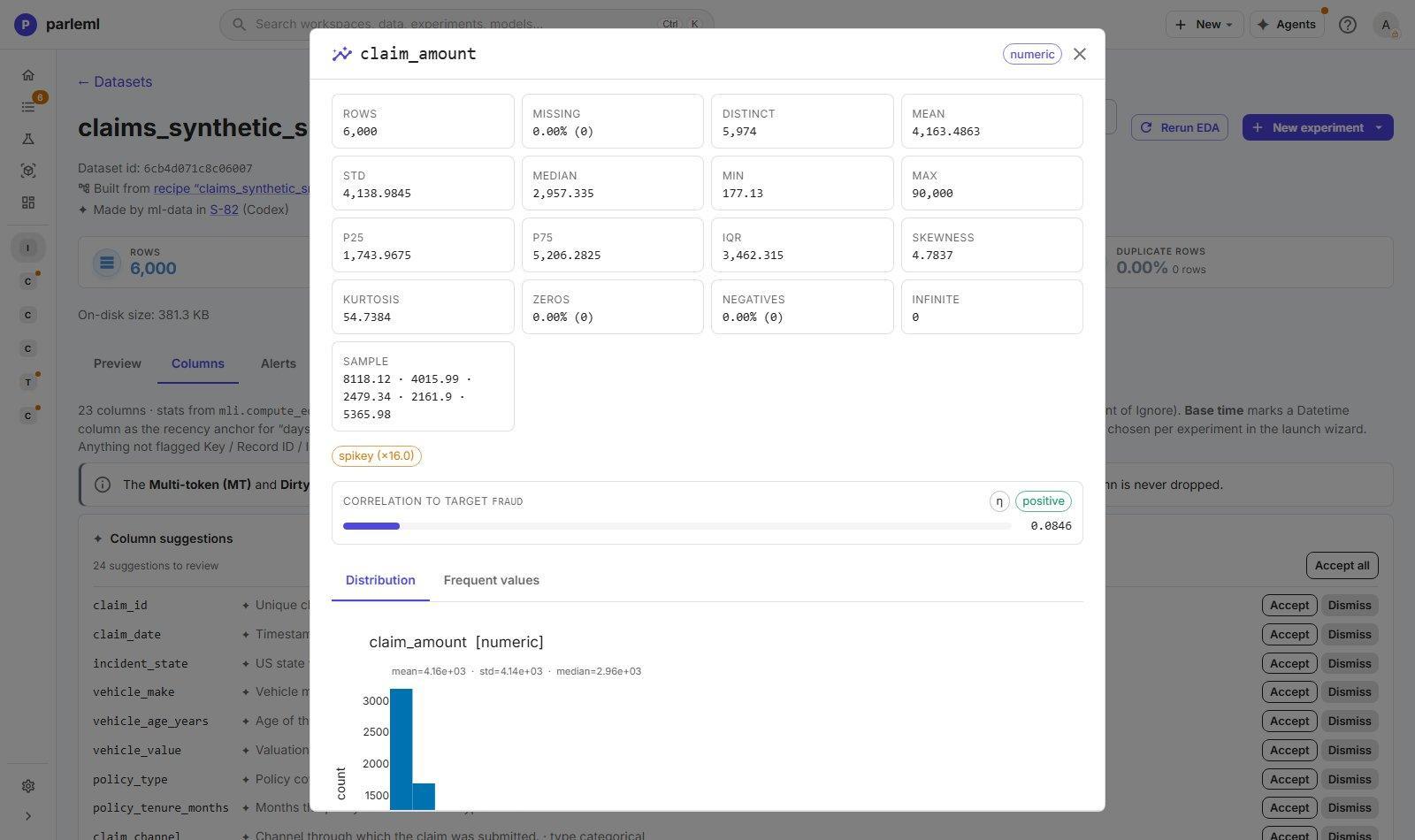
- Shape flags: spikey (one dominant bin, and how dominant), gaps (a histogram with
holes, often a mix of populations) and robust skew. In the example,
claim_amountis spikey ×16 with skewness 4.8: a long right tail worth capping or transforming. - Correlation to the target: its strength, the method that suits the two types, and the direction.
- Distribution: the histogram, or value counts for categories.
- Frequent values: a percentile table for numbers, value counts for categories.
- Word cloud for text and categorical columns: the most distinctive terms (TF-IDF) for text, the most frequent values for categories.
Details: every statistic in the Insight view
- Numbers: rows, missing, distinct, mean, standard deviation, median, minimum and maximum, P25, P75, IQR, skewness, kurtosis, zeros, negatives, infinite values and a sample.
- Categories: distinct values, the top value and its count.
- Correlation method: η (correlation ratio) for numeric–categorical, Cramér's V for categorical–categorical, Pearson for numeric–numeric.
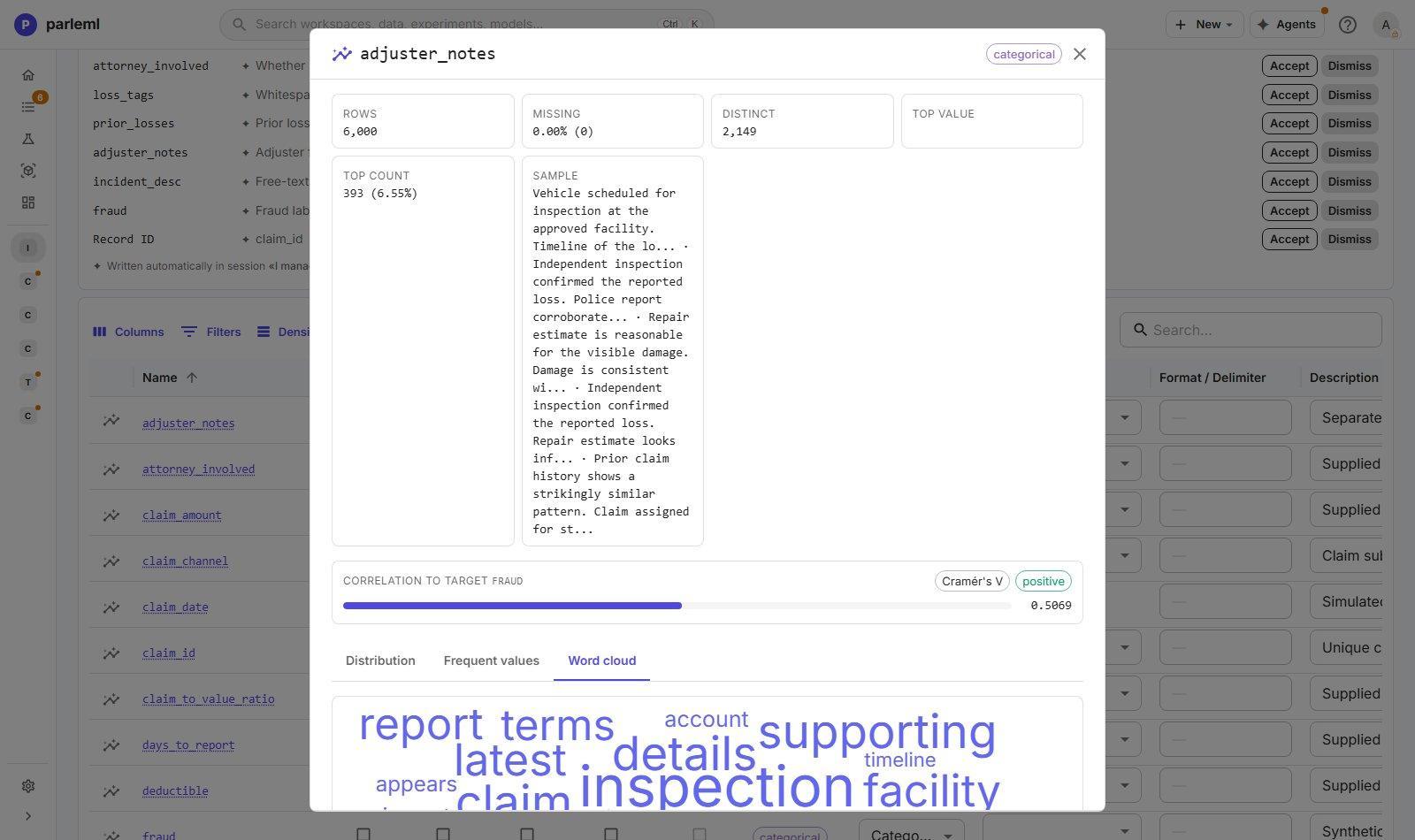
Read the drill-down before you trust a strong association. Here, adjuster_notes has a
Cramér's V of 0.51 with the fraud label, the strongest of any field, and its cloud is full of
investigation language. That is the signature of a field written during or after the outcome.
Check when it is written before you use it as a predictor.
Columns: tell ParleML what each field means
The Columns tab is where you set meaning. The column list is there as soon as the dataset is added; the statistics fill in once EDA has run.
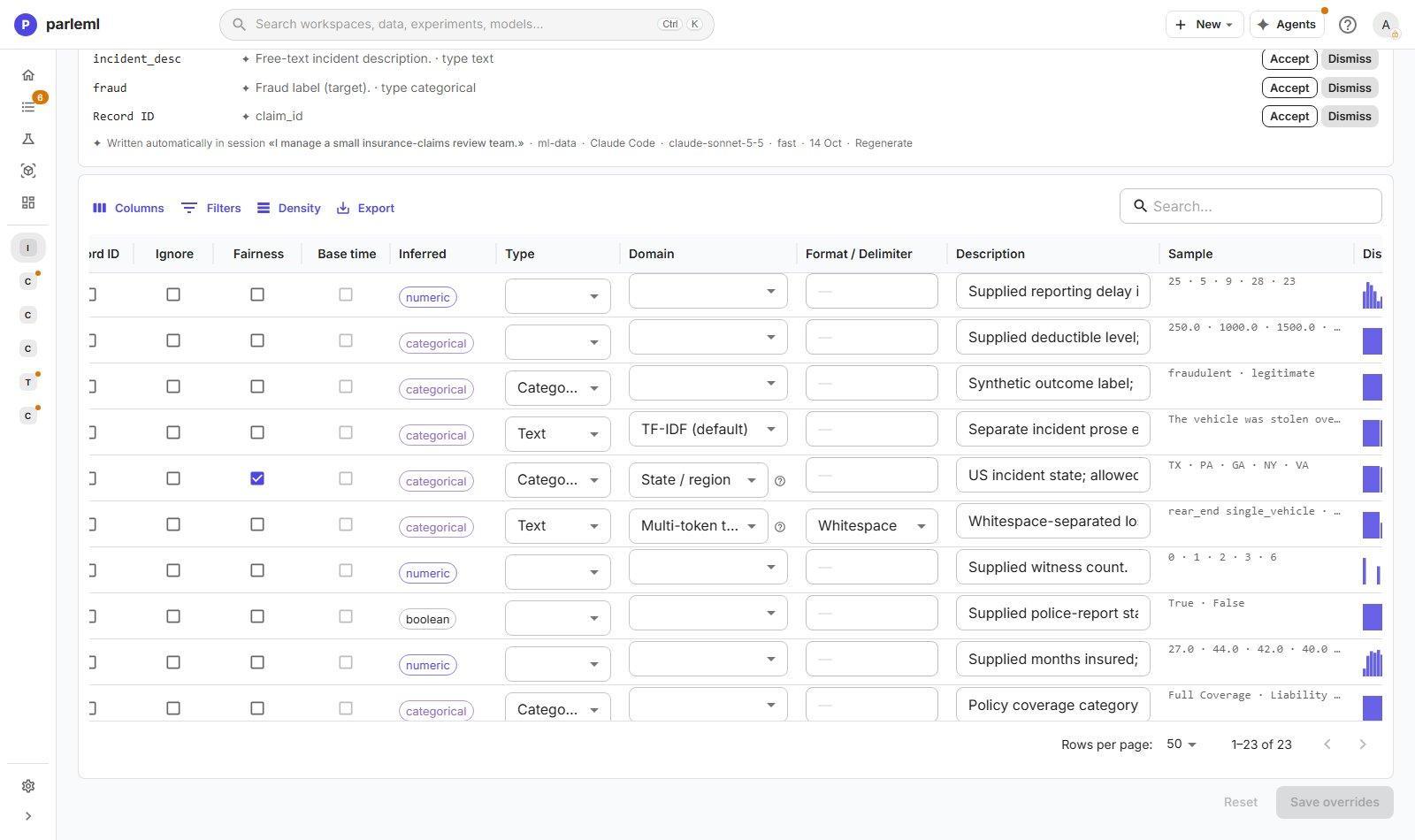
Edits in the grid wait until you choose Save overrides, so you can make several changes and review them first.
Roles
| Flag | Meaning |
|---|---|
| Key | Part of the row's identity. Not a predictor. A dataset can have several key columns. |
| Record ID | The single column that identifies a record. At most one per dataset. |
| Ignore | Leave the column out of modelling. |
| Fairness | Use the column to group fairness checks. It is separate from Ignore, so you can audit a sensitive attribute without using it as a predictor. |
| Base time | The time anchor. It drives "days since" features, preselects the time column for the forecast signal and forecast experiments, and enables chronological splits. |
Every column not flagged Key, Record ID or Ignore becomes a feature. You set the Target in the page header, never here. A fold column (one that assigns rows to cross-validation folds) is chosen per experiment, in the setup.
Type, domain and format
- Inferred is the type ParleML detected: numeric, categorical, boolean or datetime.
- Type overrides it. Text marks prose and token lists.
- Domain says what the values are, and that decides how they become features.
- Format / Delimiter holds a date format, or the delimiter that splits a token list (for example Whitespace or Comma).
- Description is shared with agents and appears in model documentation.
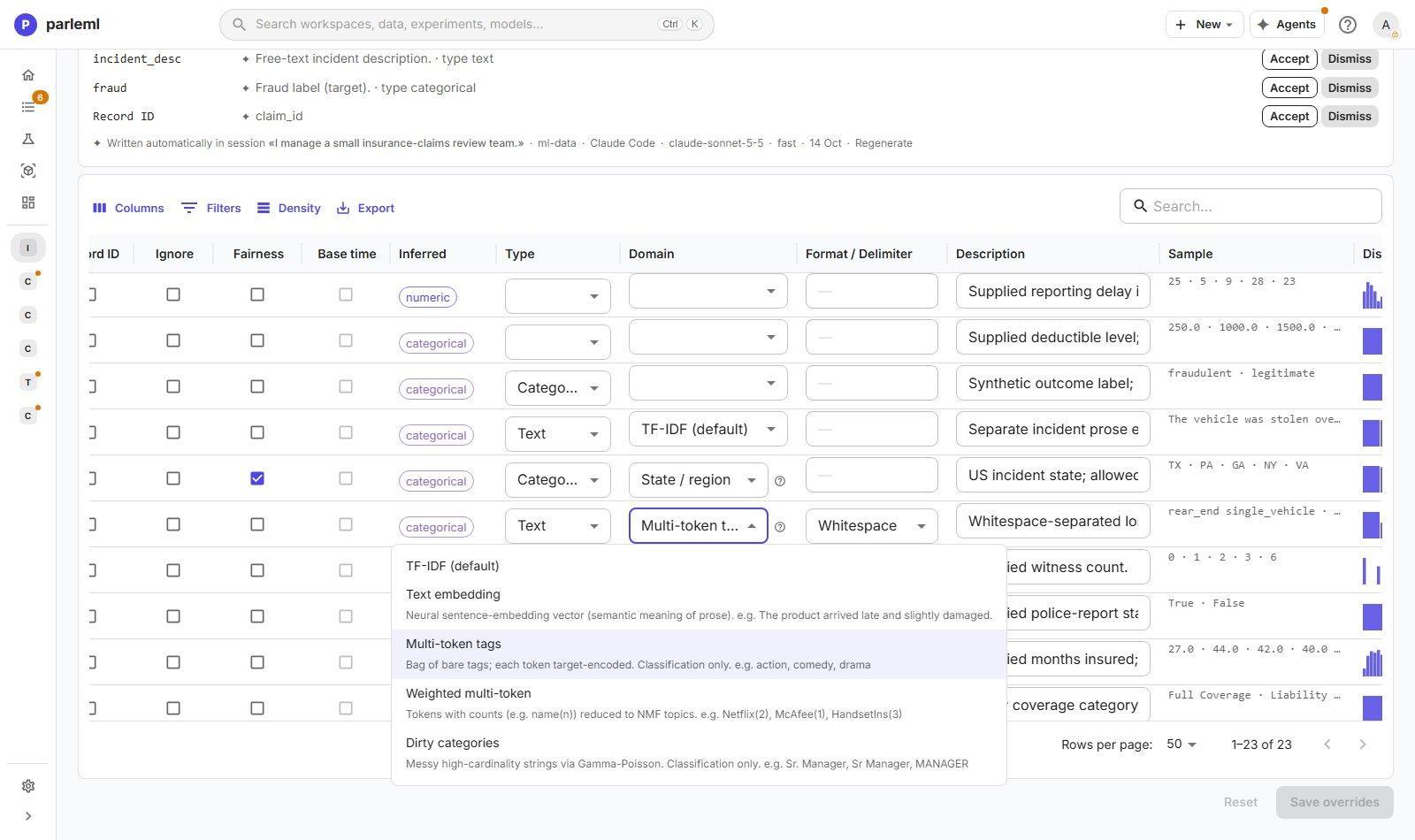
The domains on offer depend on the type. The free-text encoders apply to Text columns; the structured and personal-data domains apply to other string columns. The ? next to a domain explains it and shows whether the libraries and reference data it needs are installed on this server.
Text domains
| Domain | What ParleML derives from it |
|---|---|
| (none) on a text column | TF-IDF word features, the default text encoder |
| Text embedding | A neural sentence-embedding vector that captures meaning, not just word counts. Best for reviews, descriptions and tickets. Needs the embedding model on the server. |
| Multi-token tags | A list of bare tags, split on the delimiter (comma by default). Each tag is target-encoded. Classification only. |
| Weighted multi-token | Tokens with weights, such as Netflix(2), McAfee(1), compressed into readable topic factors. Any task. |
| Dirty categories | Messy, high-cardinality labels with near-duplicates (Sr. Manager, Sr Manager, MANAGER), topic-encoded over character n-grams. Classification only. |
Details: structured and personal-data domains
| Domain | What ParleML derives from it |
|---|---|
| Person / entity names | Name frequency, popularity and script features. Demographic proxies are opt-in, and a regulated run refuses them. Needs the names-dataset library (extended image). |
| Email address | Handle, domain and provider; role, disposable and look-alike-domain flags; handle entropy |
| Phone number | Validity, then country, region, line type (mobile or landline) and carrier |
| Full postal address | Street number, street, city, state and postal code, plus PO-box and commercial-address flags |
| Street line, City, State / region | Consistency flags against a parsed address or IP location, such as a city that does not match the IP's city |
| ZIP / postal code | Prefix, place and state features; with two ZIP columns, the distance between them |
| IP address | Country, region, city, network owner (ASN), network type, and private or bogon flags. Needs the MaxMind GeoLite2 databases. |
| URL / link | Subdomain, domain, top-level domain and path depth, with URL-shortener and IP-literal flags |
| User agent | Browser, operating system and device family and version, with mobile and bot flags |
| Device info (JSON) | A device record flattened into features; embedded user-agent and IP fields are parsed too |
| Credit card (PAN) | Checksum validity, card network and length. The raw number is never a feature. |
| IBAN | Validity, country and bank code |
| VAT number | Validity and country |
In the claims example, loss_tags is set to Multi-token tags split on whitespace,
prior_losses to Weighted multi-token split on commas, and incident_state to State /
region. The prose fields keep TF-IDF or use a text embedding.
Column statistics
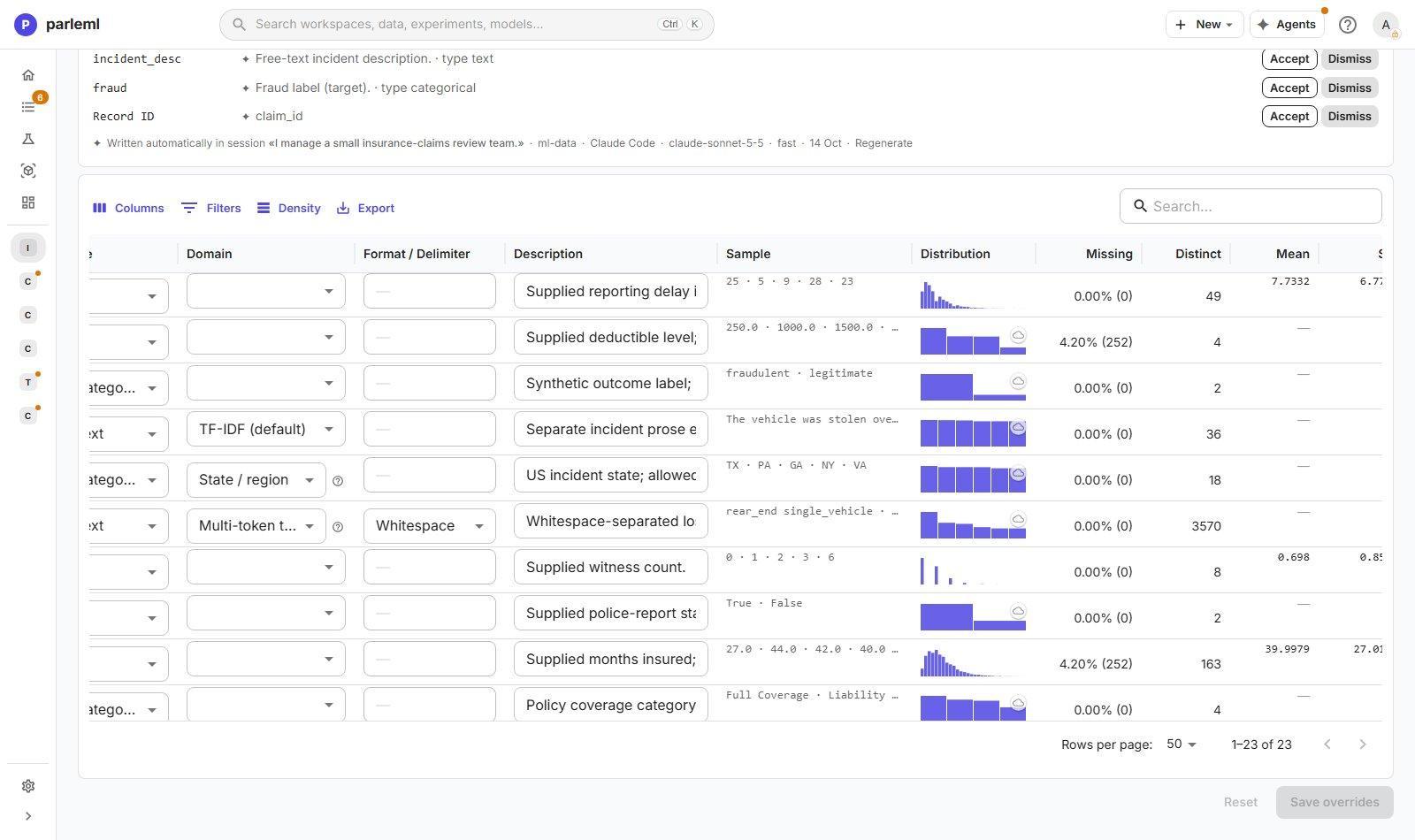
Scroll the grid right for each column's sample values, an inline distribution, missing share, distinct count, top value and more. You can filter, search and export the grid.
Suggestions from an agent
Column suggestions → Describe columns asks an agent to propose, for each column, a description and the metadata the evidence supports: type, domain, format, and the Key, Fairness and Base time roles. It can also propose a Record ID.
- Each proposal has Accept and Dismiss, and you can accept them all at once.
- The panel names the session and model that wrote them, with Regenerate.
- Accepting records who accepted, so you can revert it.
- The target is never suggested. Only a person sets it.
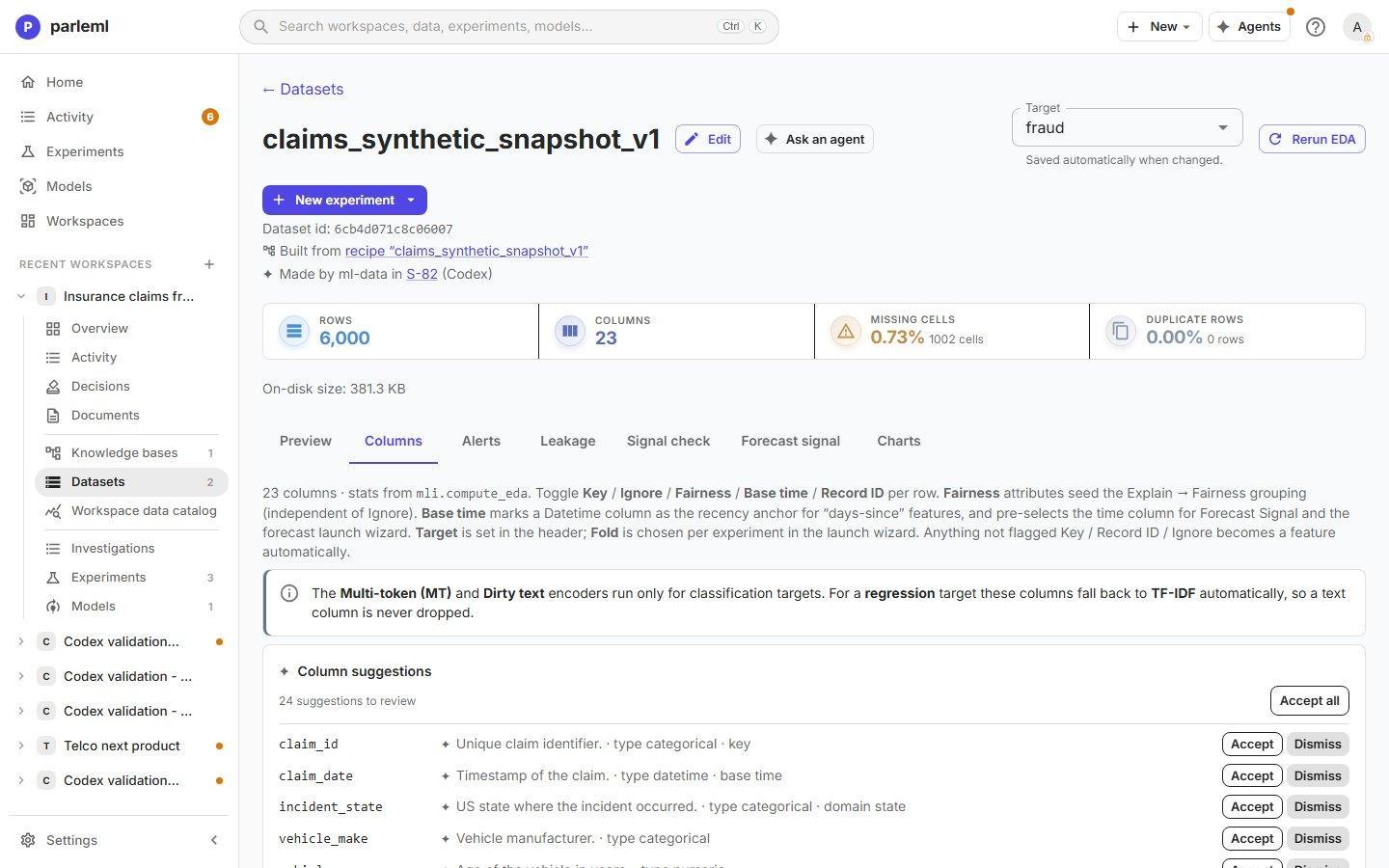
While the grid holds unsaved edits, accepting a suggestion waits. Save or reset your edits first, so one change can't silently overwrite the other.
Alerts: a written assessment and every warning
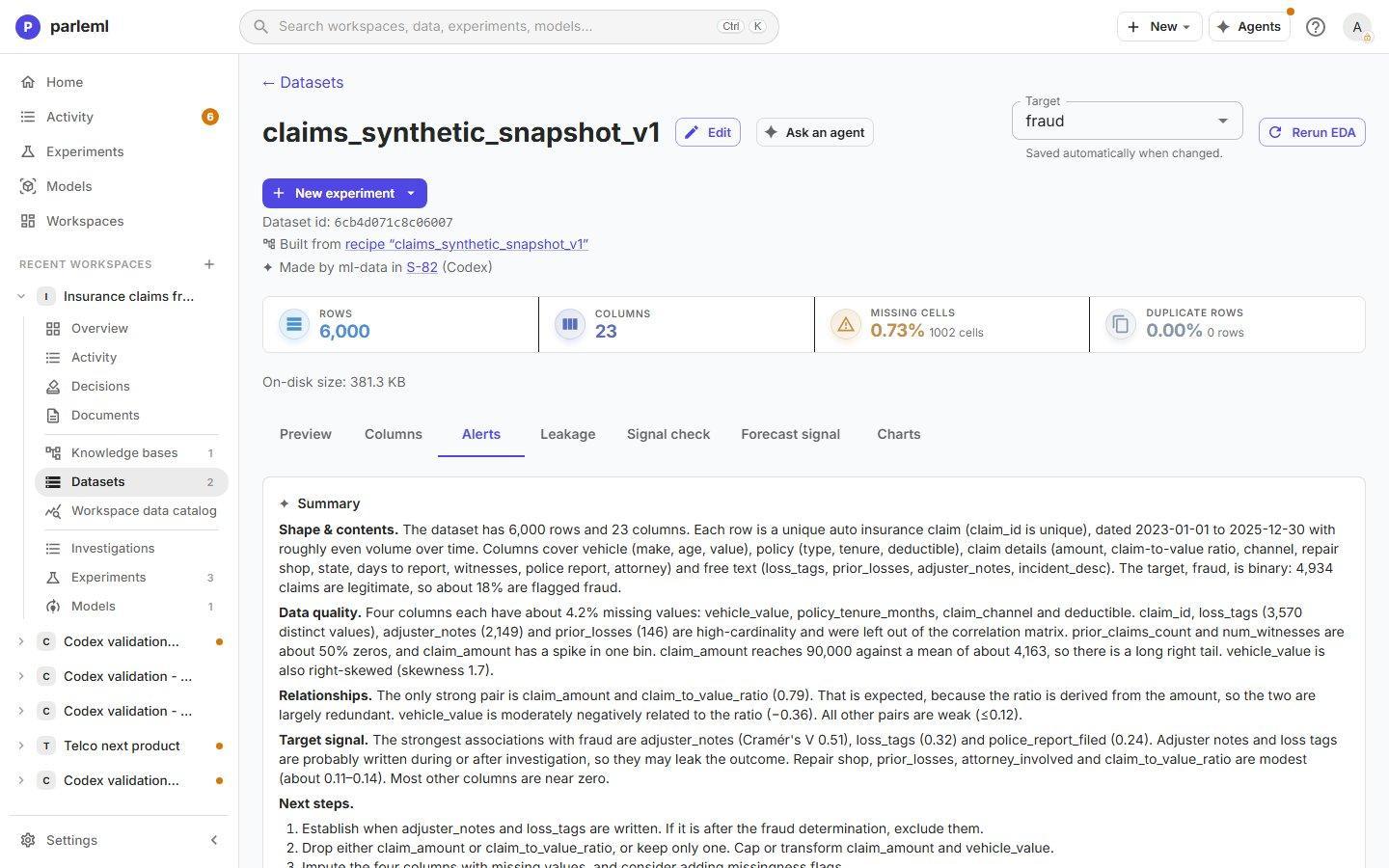
Alerts opens with a written summary of the dataset: shape and contents, data quality, distributions and relationships, target signal, and recommended next steps. An agent or the server's model writes it from the EDA, and the summary names who wrote it. Summarise writes or refreshes it.
Below the summary, every profiler alert is grouped by kind: missing values, high cardinality, skew, constant columns, high correlation and so on. The groups are sorted by worst severity. The severity chips double as a filter, and one search narrows every group at once, which matters on a wide table with hundreds of alerts.
Leakage
Leakage is information in a predictor that would not exist when a prediction is made. It makes a model look far better than it will be. ParleML scans for it as part of EDA. The scan knows the column roles, so it treats the target, the time column and identifiers correctly.
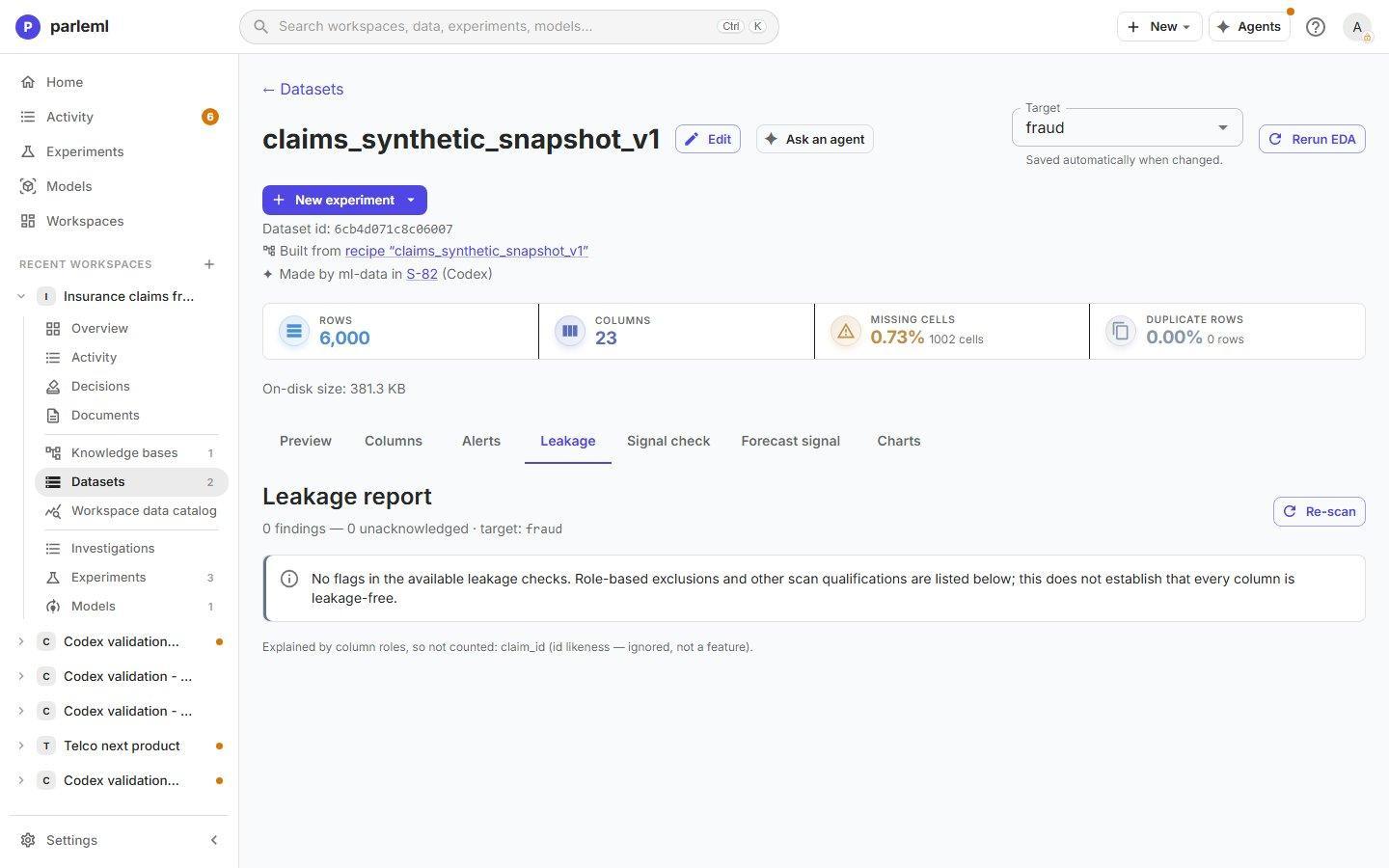
Each finding shows its kind and severity, the measured value, a suggested action, any note, and who confirmed it.
- Judge each finding, add a note, and switch on Acknowledge this finding.
- After you change roles or the target, choose Re-scan.
The tab counts the findings still unacknowledged. A possible label leak also appears under Needs you on Home until a person confirms it. An agent can only propose an acknowledgement, with a note giving its reason; a person then chooses Confirm. A finding is a prompt to investigate, not proof.
Signal check: is there anything to learn?
Signal check answers, before any training, whether the target has learnable signal. A zero-shot tabular foundation model (TabICL) predicts the target on a sample of rows, with no training. ParleML scores those predictions against chance, shows what a no-skill model would score, and lists the fields the signal seems to come from.
- Pick the Target column.
- Choose Check signal now.
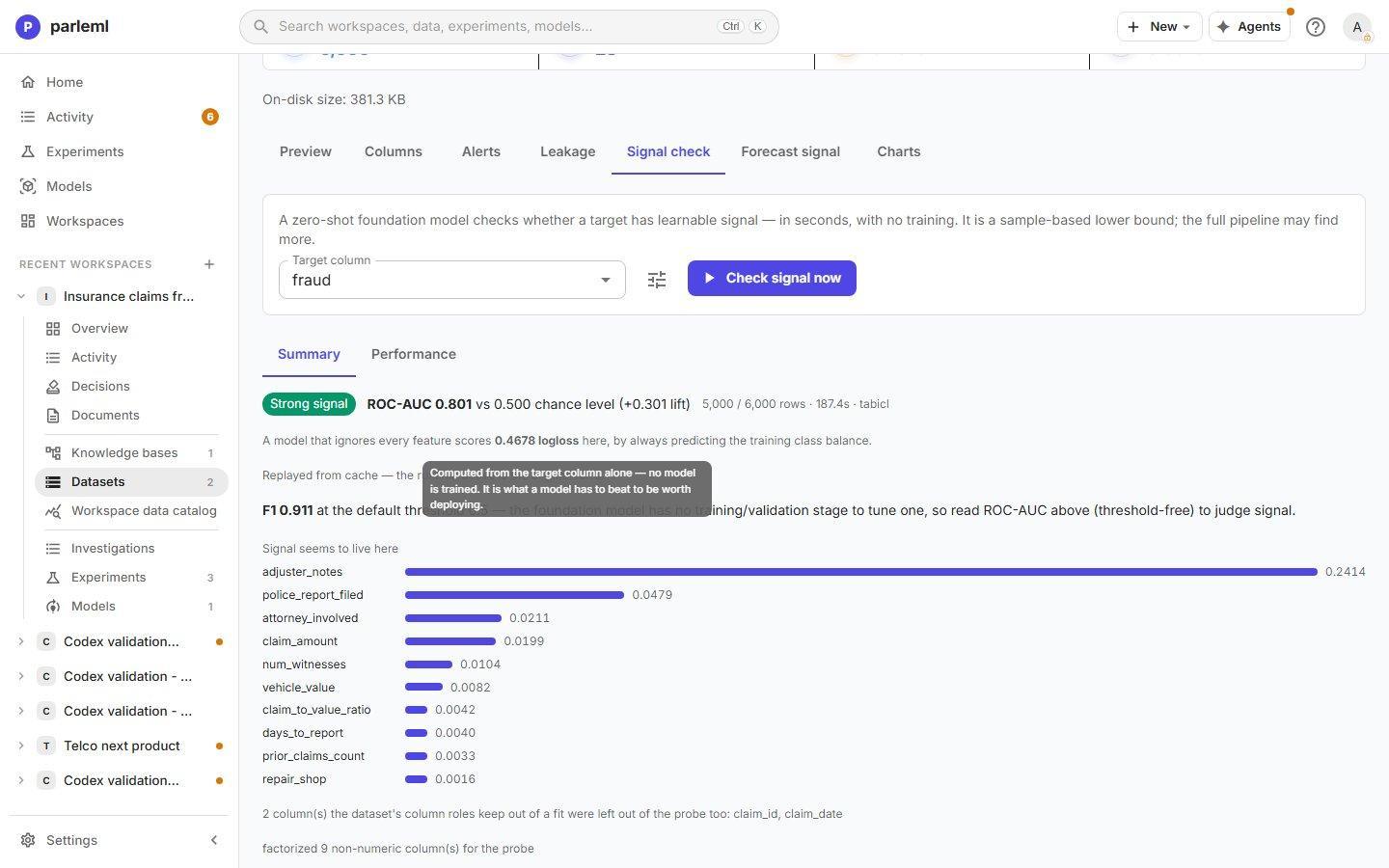
In the example the verdict is Strong signal: ROC-AUC 0.801 against 0.500 for chance, on
5,000 of the 6,000 rows. The signal lives mostly in adjuster_notes, the field the drill-down
flagged. So the next step is to confirm when that field is written, not to train harder.
The result is a lower bound: the full training can find more. Columns your roles keep out of a fit are left out of the check too, and the result lists them. A repeated check is served from cache, and the original runtime is shown. The same check runs from the experiment setup (Check signal now (seconds)).
Forecast signal
For time series, Forecast signal asks whether a full forecasting run is worth it. A zero-shot forecasting model (Chronos) forecasts the last steps of each series. ParleML scores it against a seasonal-naive baseline using MASE, a scaled error where lower is better.
- Pick the Time column and the Target column.
- Optional: open Advanced settings for the series ID, frequency, roll-up and aggregation, the engine, horizon, season length and maximum number of series. Left blank, they follow the data.
- Choose Check forecastability.
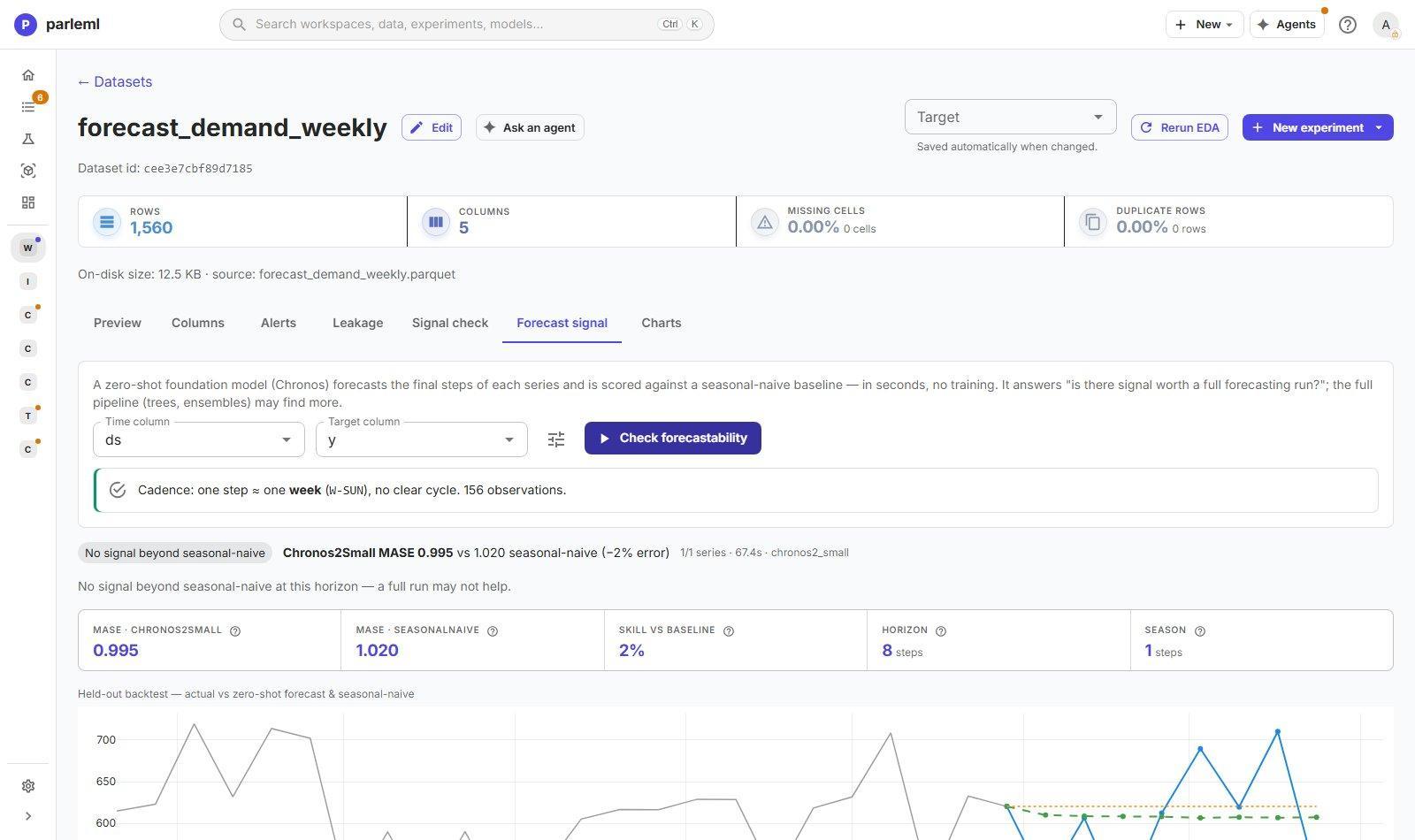
ParleML first reports the cadence it detected (here, one step per week, with no clear cycle, over 156 observations). The result gives:
- MASE for the model and for the baseline, and the skill over the baseline;
- the horizon and the season;
- a held-out backtest chart of the actual values against both forecasts;
- MASE for each series.
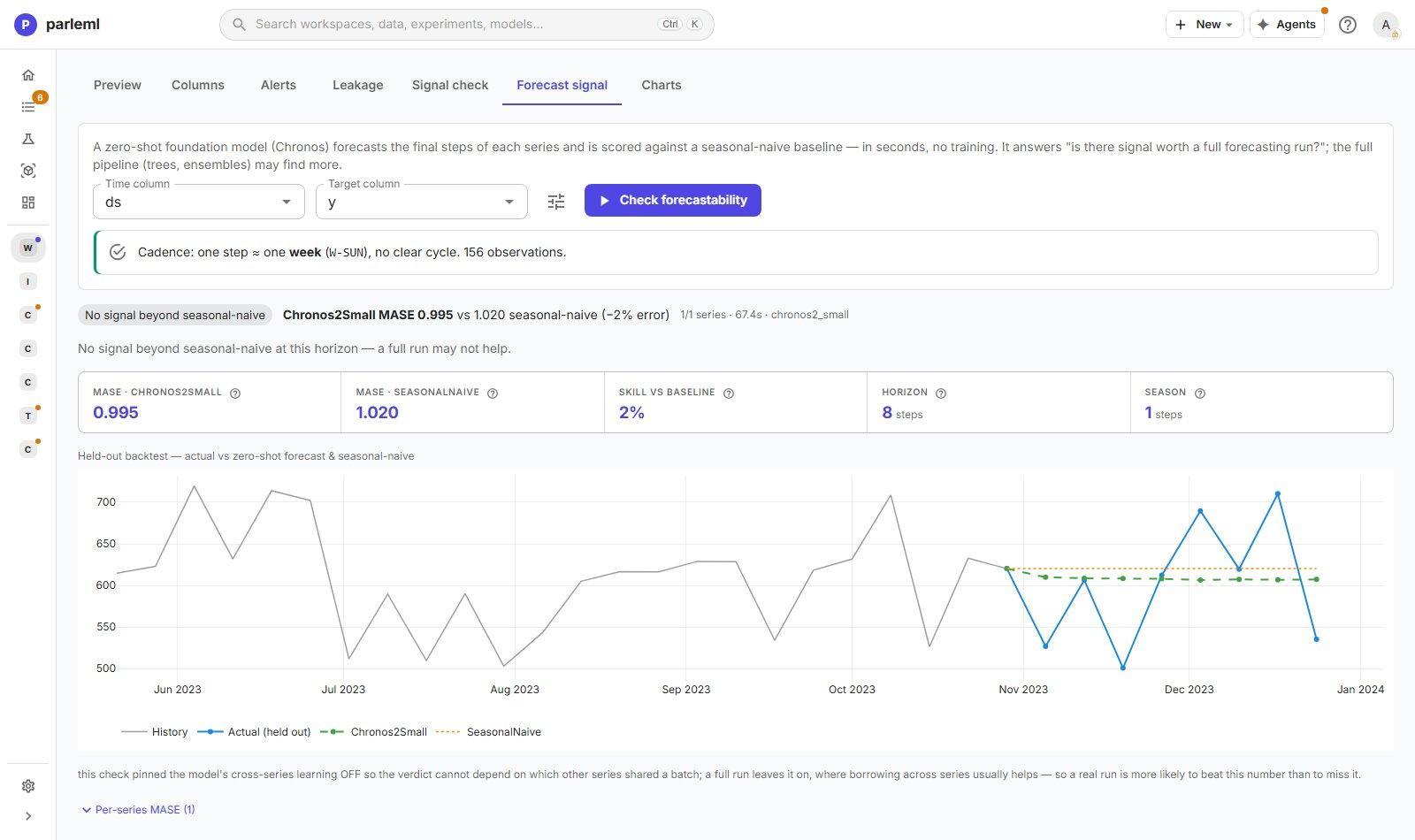
The verdict is honest, including when it is negative. For the weekly demand sample it reads No signal beyond seasonal-naive: MASE 0.995 against 1.020, only 2% better. That is worth knowing before you spend time on a large forecasting run.
Charts: the full exploratory analysis
Charts holds 13 interactive views. Each has a one-line description and a How to read note, and loads when you open it. Summary views come from the saved EDA; row-level views are recomputed from the data when opened.
Details: the 13 views
| View | Shows |
|---|---|
| Target correlations | Each feature's association with the target, using the method that suits its type. The first thing to look at when choosing a baseline. |
| Correlation matrix | Pairwise association between all features (Pearson, Cramér's V or η²). Spots redundant pairs. |
| Correlation graph | A network of the strongest associations. Tight clusters are redundant features. |
| Distribution alerts | A ranking of spikey, skewed and gapped columns |
| Missingness map | The missing rate per column, and where in the rows the gaps are |
| Outliers | The share of values flagged by IQR (1.5×) and by |z| above 3.5, worst first |
| Transformation hints | Suggested transforms (log, Box-Cox and others) for skewed columns, with the skew that would remain |
| Category variability | How strongly each categorical field shifts each numeric one (η², with ANOVA and Brown–Forsythe) |
| Category boxplots | Box plots of a numeric field across a category's levels, for the pairs ranked above |
| Correlated pairs | Scatter plots of the most correlated pairs: is the relation linear, clustered, or driven by outliers? |
| Shape radar | A fingerprint of each numeric column: dispersion, missingness, outliers and heavy tails |
| PCA biplot | The main directions of variance, with the features that drive them |
| Parallel coordinates | The top numeric features for every row, coloured by target, to spot value bands per class |
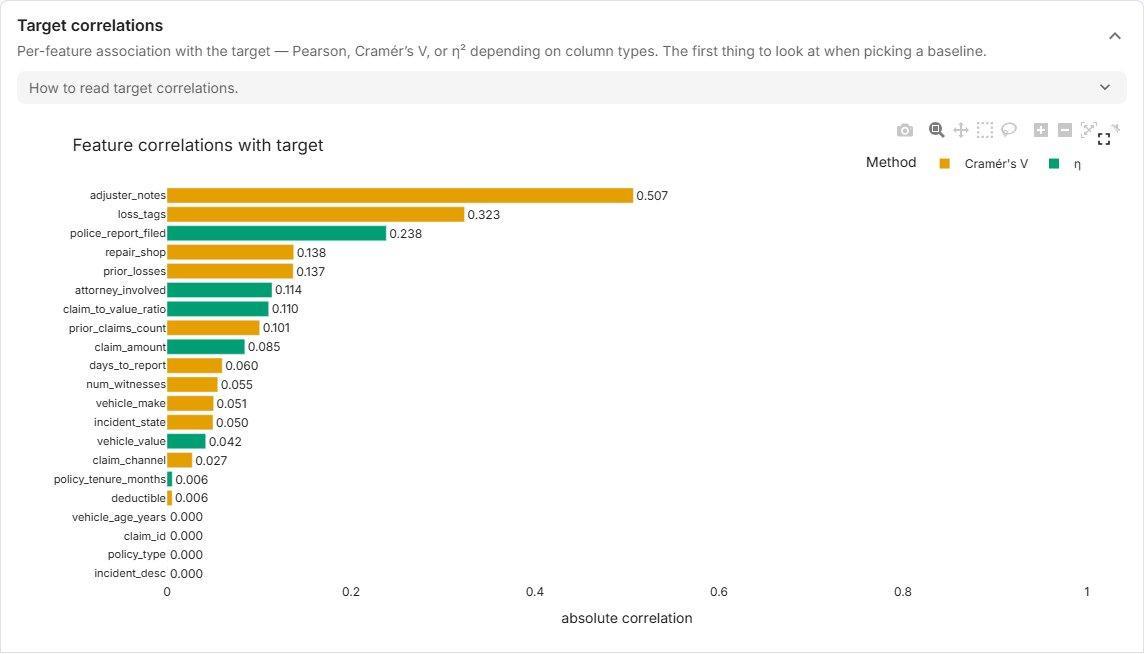
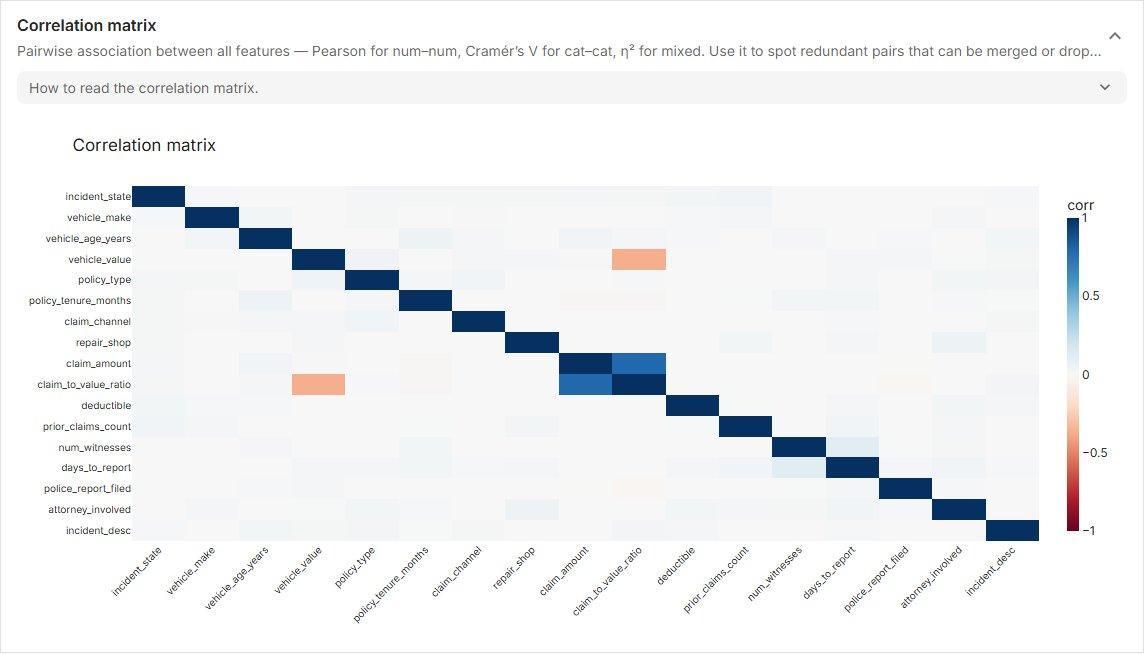
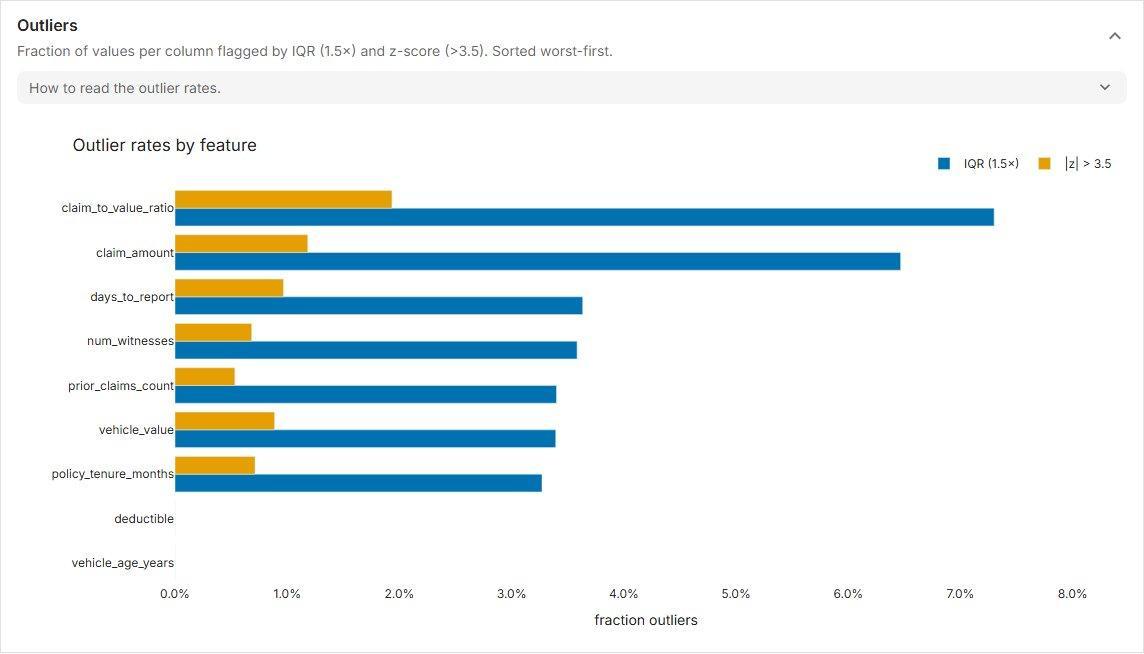
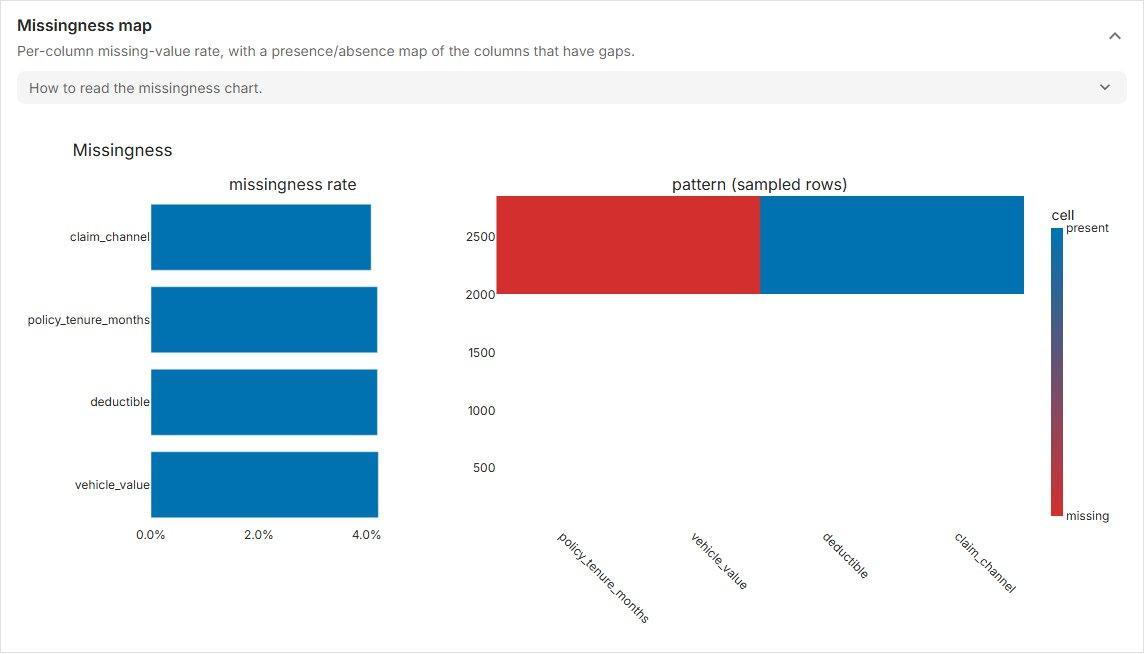
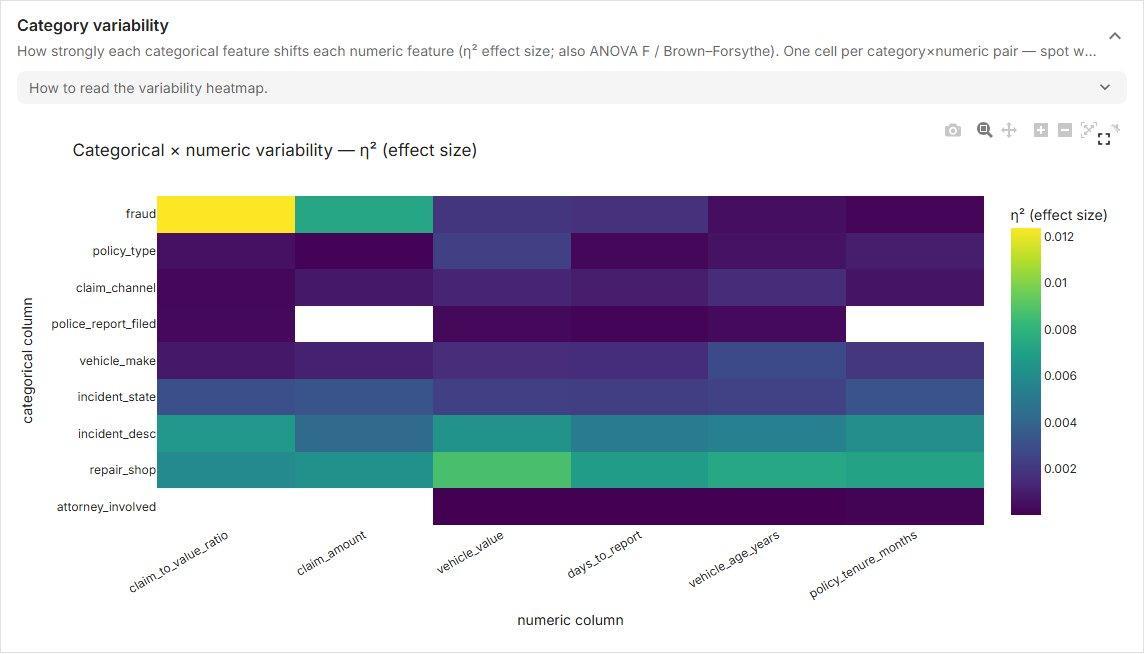
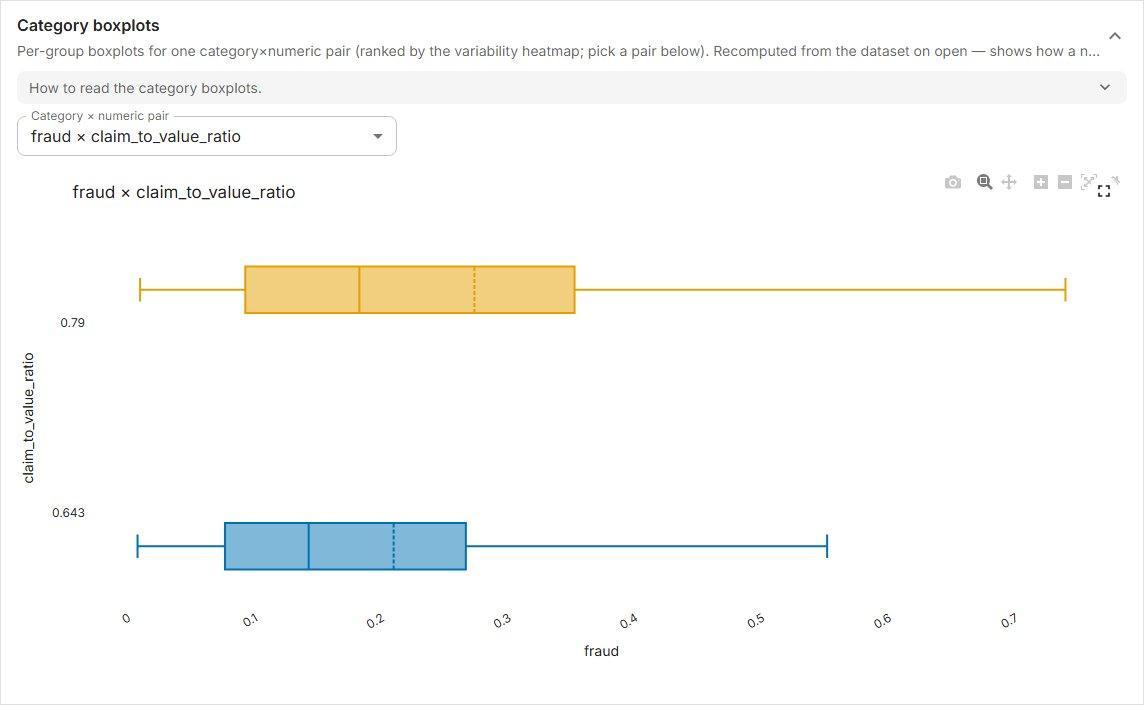
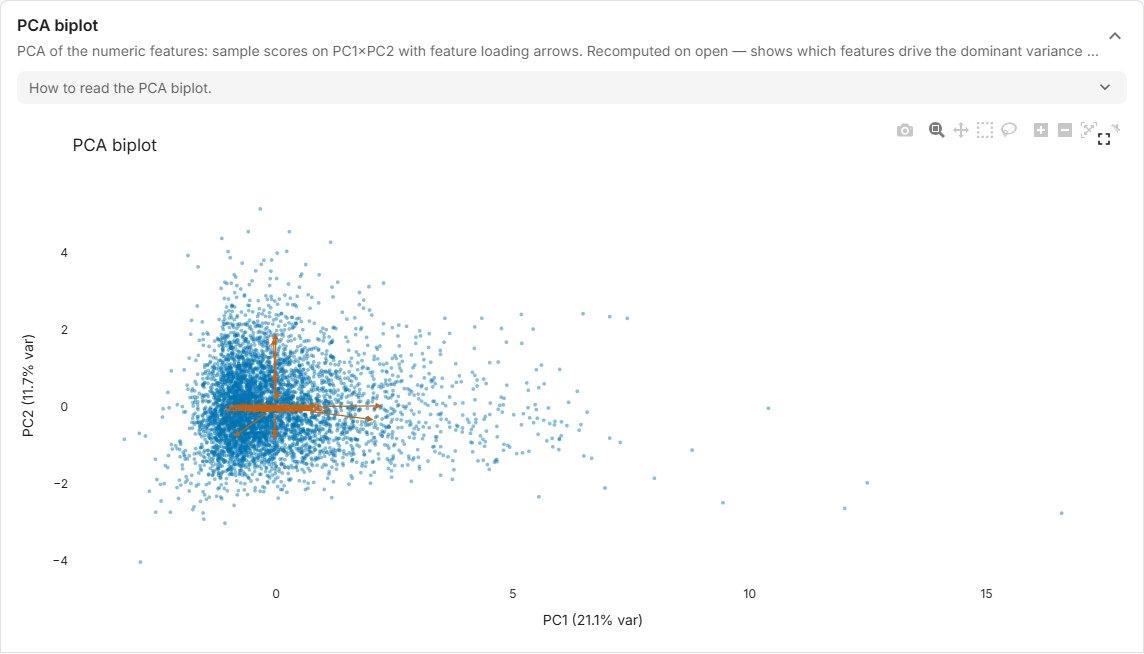
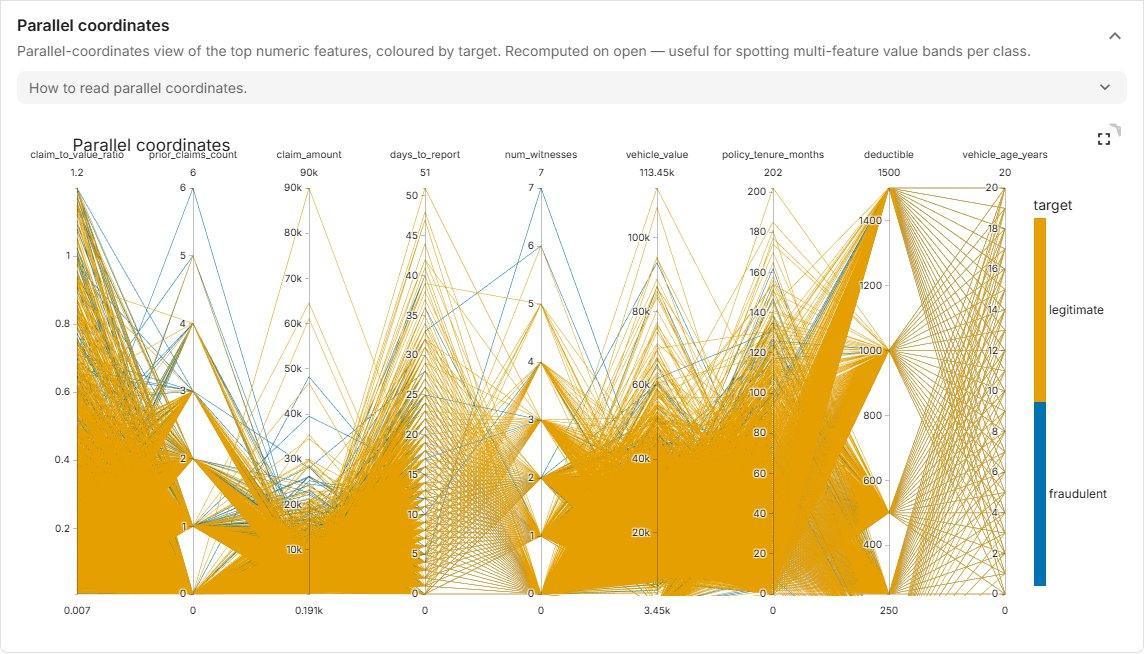
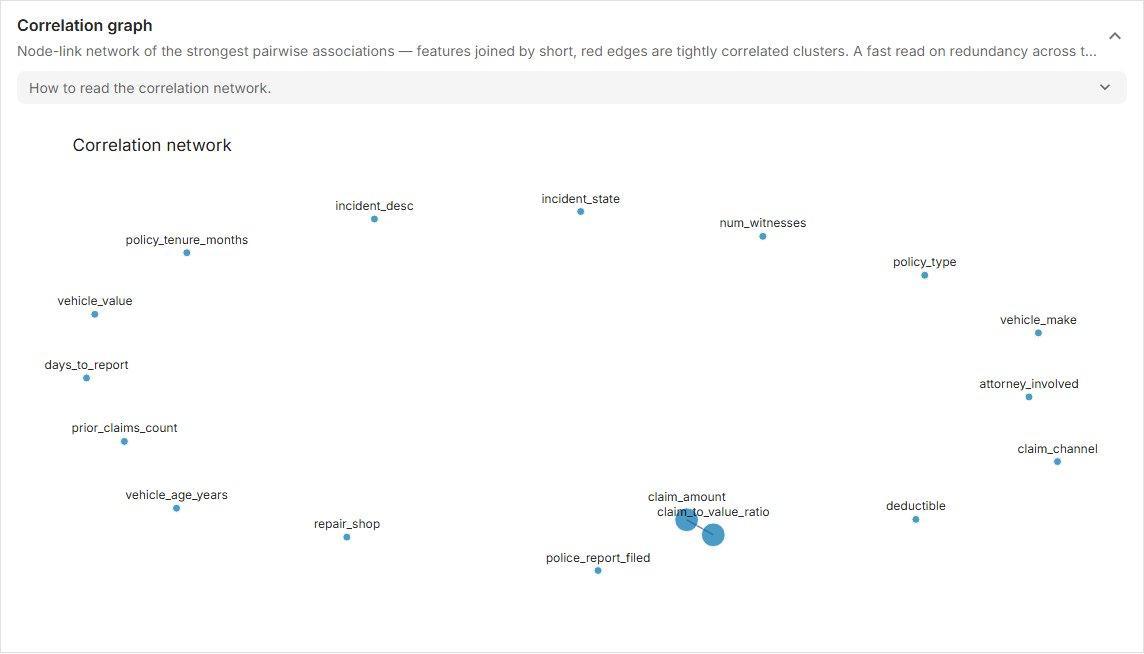
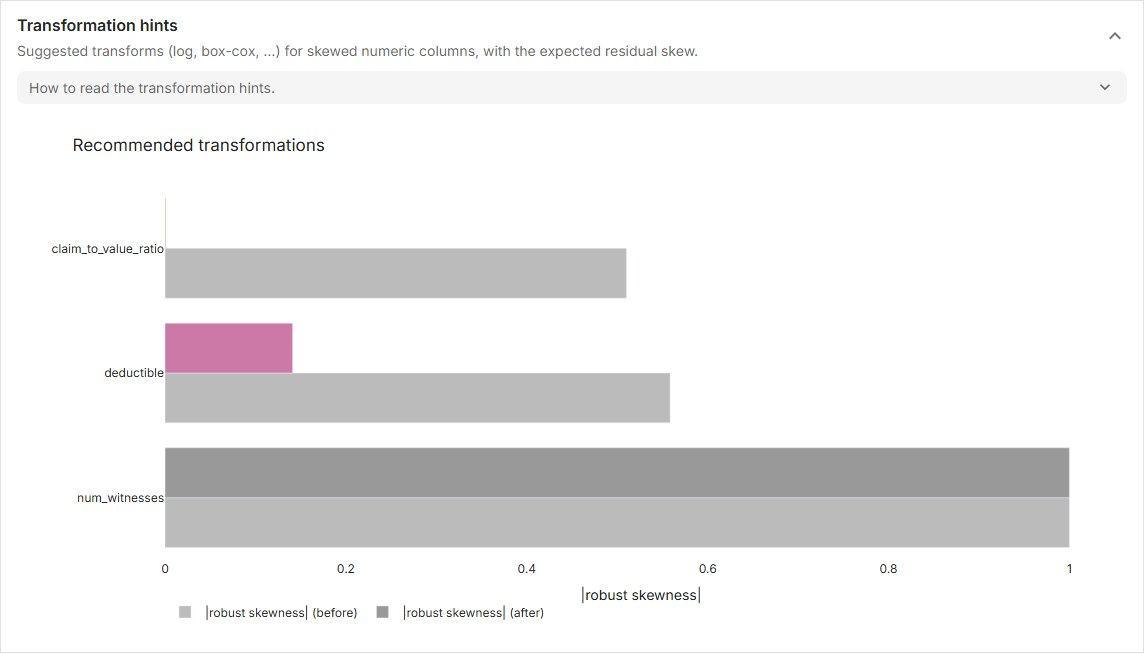
Every chart lets you zoom, pan, hover and export an image. An association is not a cause, and a strong one with the target is as likely to be leakage as insight.
Compare datasets for drift
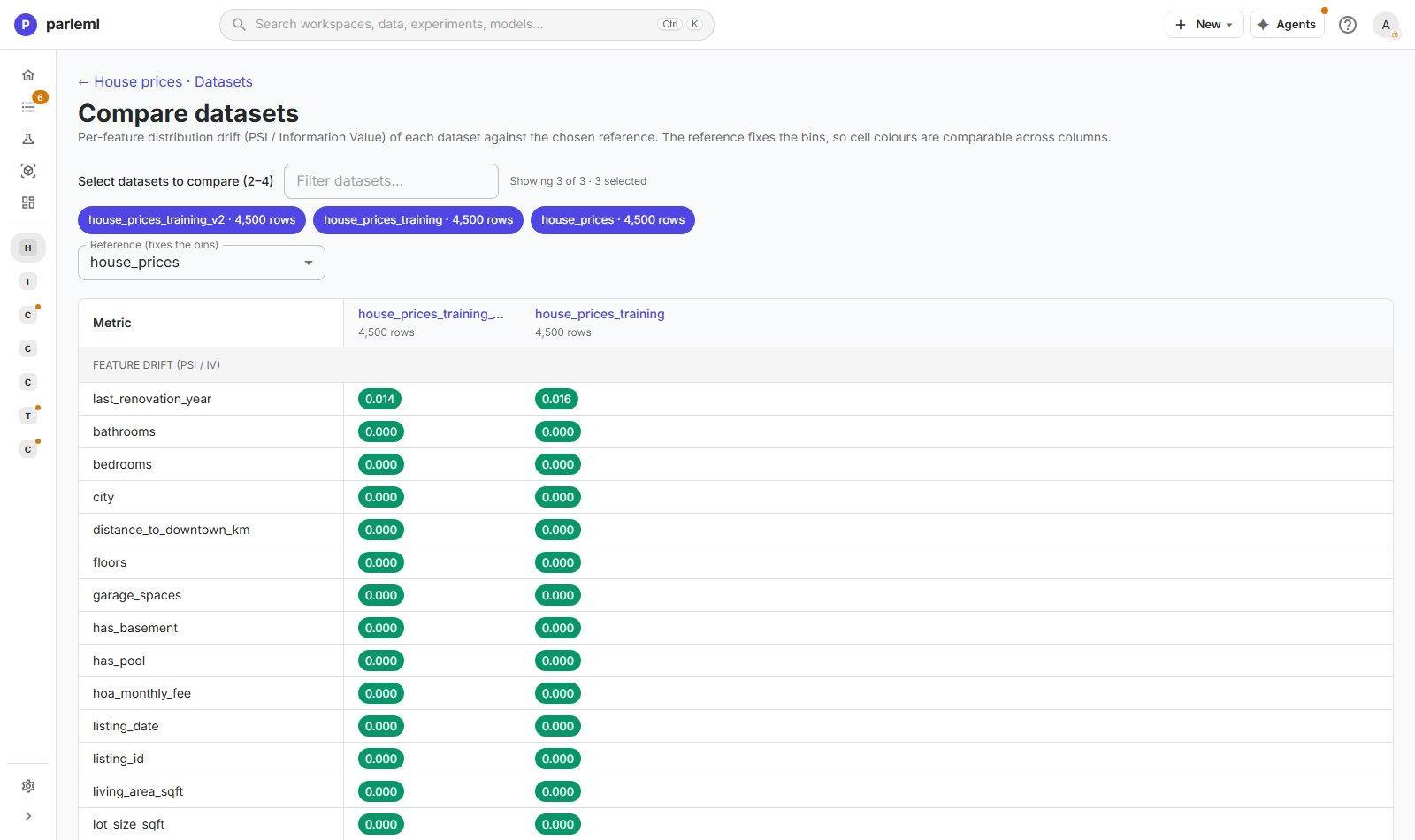
On the Datasets page, tick two to four datasets and choose Compare. Each feature's drift against a chosen reference dataset is shown as PSI (or Information Value), using the reference's bins so the colours compare across columns. Use it to check:
- that a prepared training table still resembles its source;
- that a new month of data resembles the one a model was trained on;
- what changed between two versions.
The selection is kept in the page address, so you can bookmark and share a comparison.
Knowledge bases and recipes
A knowledge base is a catalogue of tables you can query, with their relationships and the recipes that build training tables from them. Each table is a DuckDB view, so any table can be joined to any other with SQL, whatever its source.
Workspace data catalog in the sidebar opens the workspace's own knowledge base. It is the same live catalogue an agent sees. It holds:
- every dataset in the workspace;
- every result table an experiment publishes (Publish results). A classification or regression run publishes its predictions, archetypes, rules and rules fired, already linked by keys into a small star schema.
To add another source, choose New → Knowledge base and pick a tab:
- Demo: an included demo database.
- Database: SQLite, or a server database through a saved connection (Connect a database).
- Workbook: Excel or CSV files; each sheet or file becomes a table.
- Workspace data: this workspace's datasets.
The header counts the objects selected, the relationships and the recipes, and shows the status, for example connected, then recipe ready. The Overview tab has a readiness checklist: objects selected, relationships discovered, descriptions generated, recipes ready.
Objects
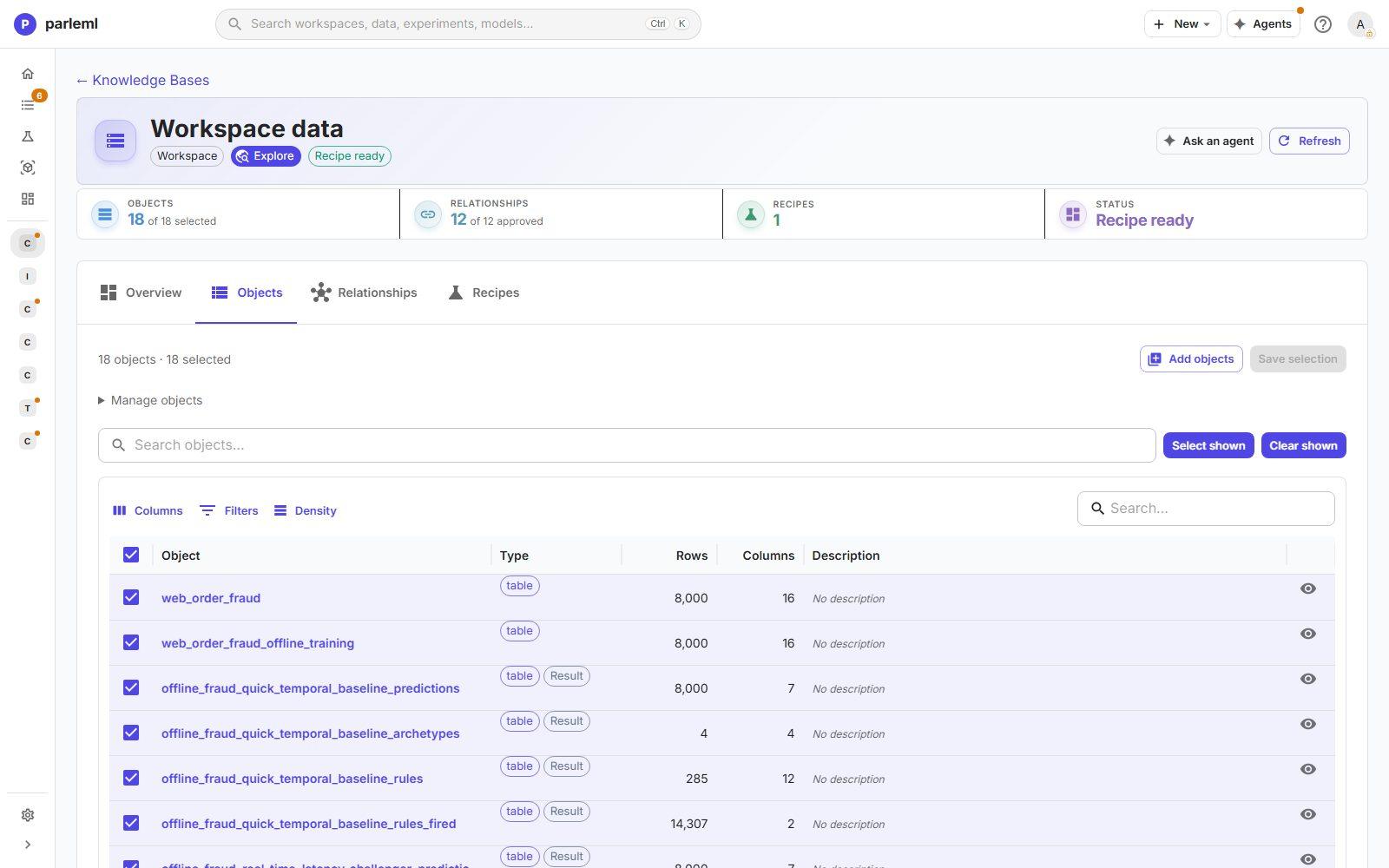
Objects lists every table with its type, row and column counts and description. A Result chip marks tables an experiment published. Tick the tables in scope: only selected tables take part in relationship discovery and recipes.
Describe tables asks an agent to propose table and column descriptions, which you accept table by table. Descriptions also ground the SQL that recipes suggest.
Open a table to inspect it:
- Overview: type, rows, columns, relationship count and the business description, which you can edit in place;
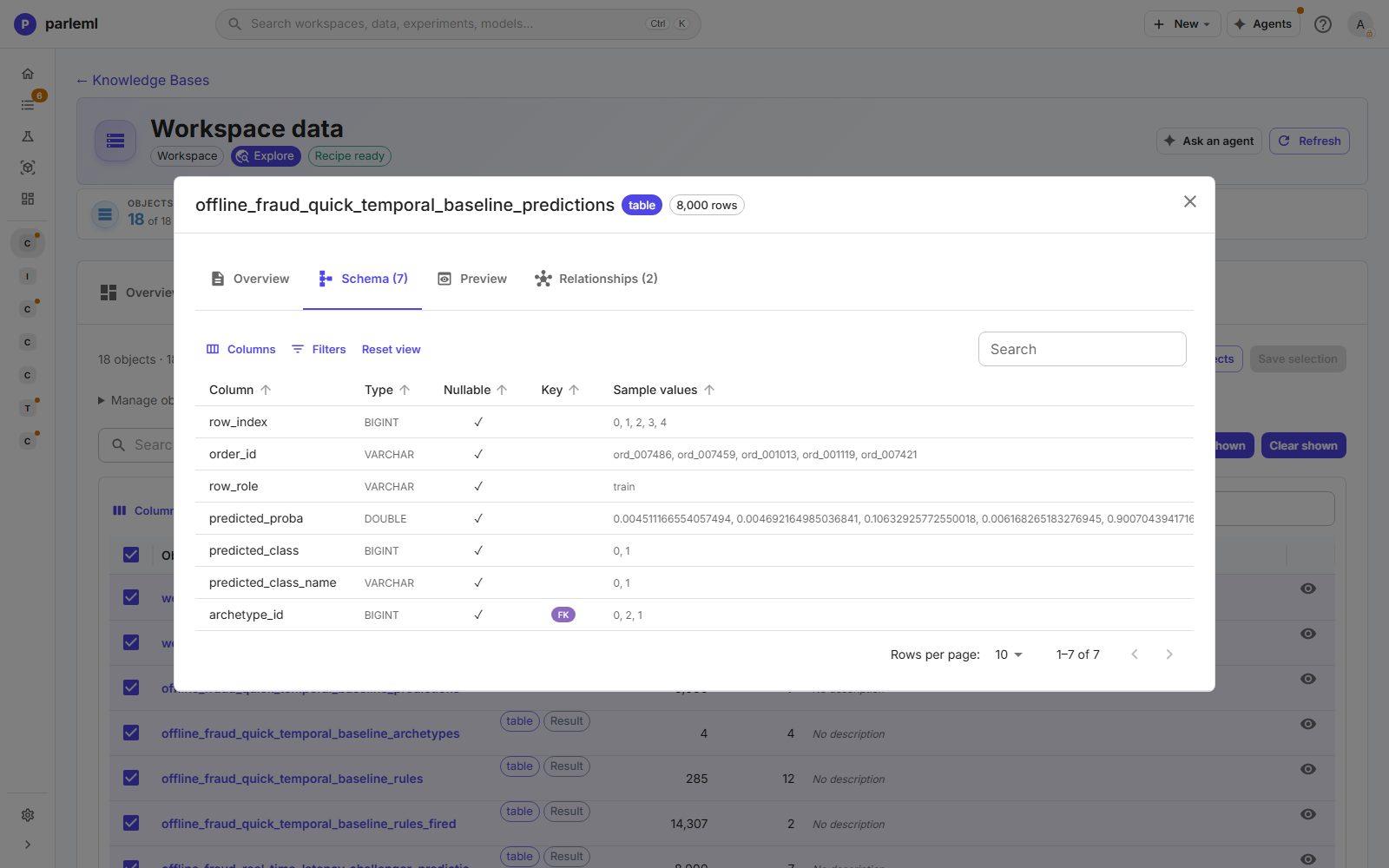
- Schema: every column with its type, nullability, primary-key and foreign-key markers, and sample values;
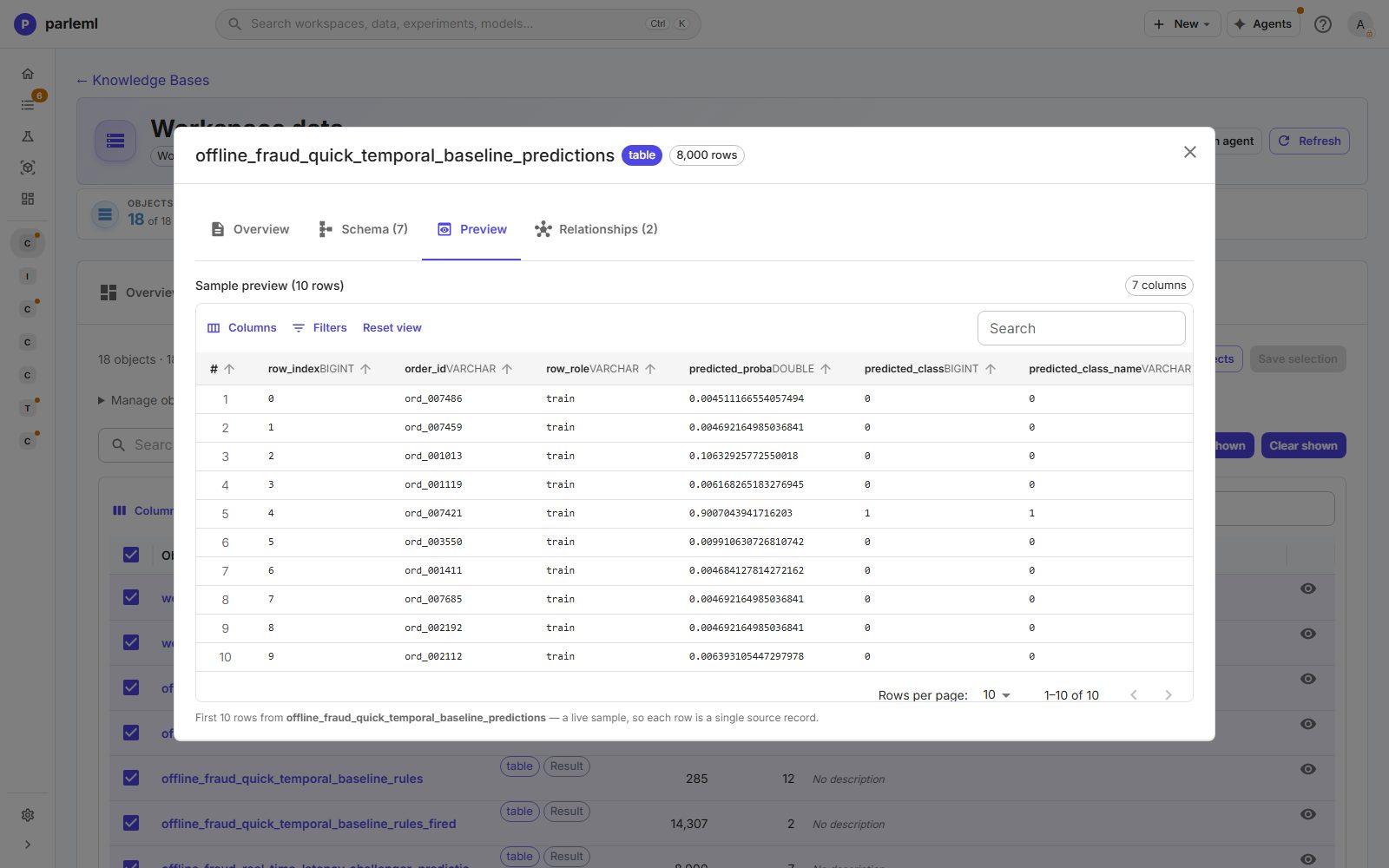
- Preview: a live
SELECT … LIMITof real rows from the source; - Relationships: the joins the table takes part in, with their status and evidence.
Relationships and the schema diagram
Relationships finds and records the joins between tables:
- Declared foreign keys are taken as they are: approved and fixed.
- Auto-discover measures candidate joins by matching names and values, and reports the overlap.
- Suggest relationships asks an agent for a verdict on each candidate, with a confidence and its reasoning, for you to accept or dismiss.
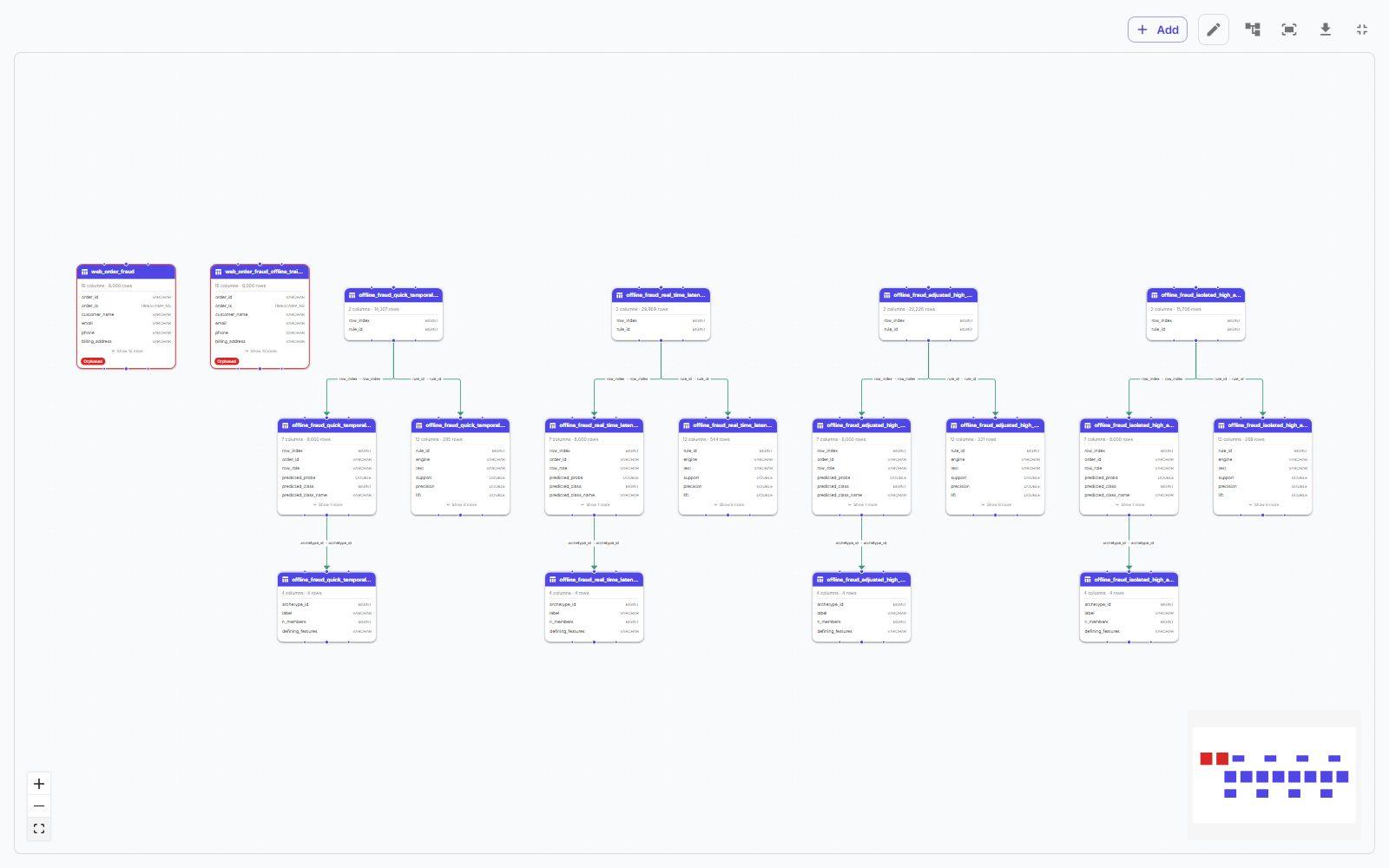
Switch between List, a table of the joins, and Diagram, an interactive drawing of the whole schema.
Details: working in the diagram
- Table cards show row and column counts and each column with its type and key markers. Wide tables expand. A table with no join is outlined as orphaned.
- Edges are labelled with their column mapping (
archetype_id → archetype_id). Solid edges are approved or declared keys; dashed amber edges wait for review. - Tools: zoom and pan with a mini-map, re-run the automatic layout, fit to screen, go full screen, and export the diagram as PNG or SVG.
- Inspector: select a table to inspect it beside the canvas. Select an edge for the relationship inspector: source and target, column mapping, kind and cardinality (for example many-to-one), status, a confidence bar and the reasoning, with approve, reject, edit and delete.
- Adding joins: choose Add, or switch to edit mode and drag from one table's handle to another's.
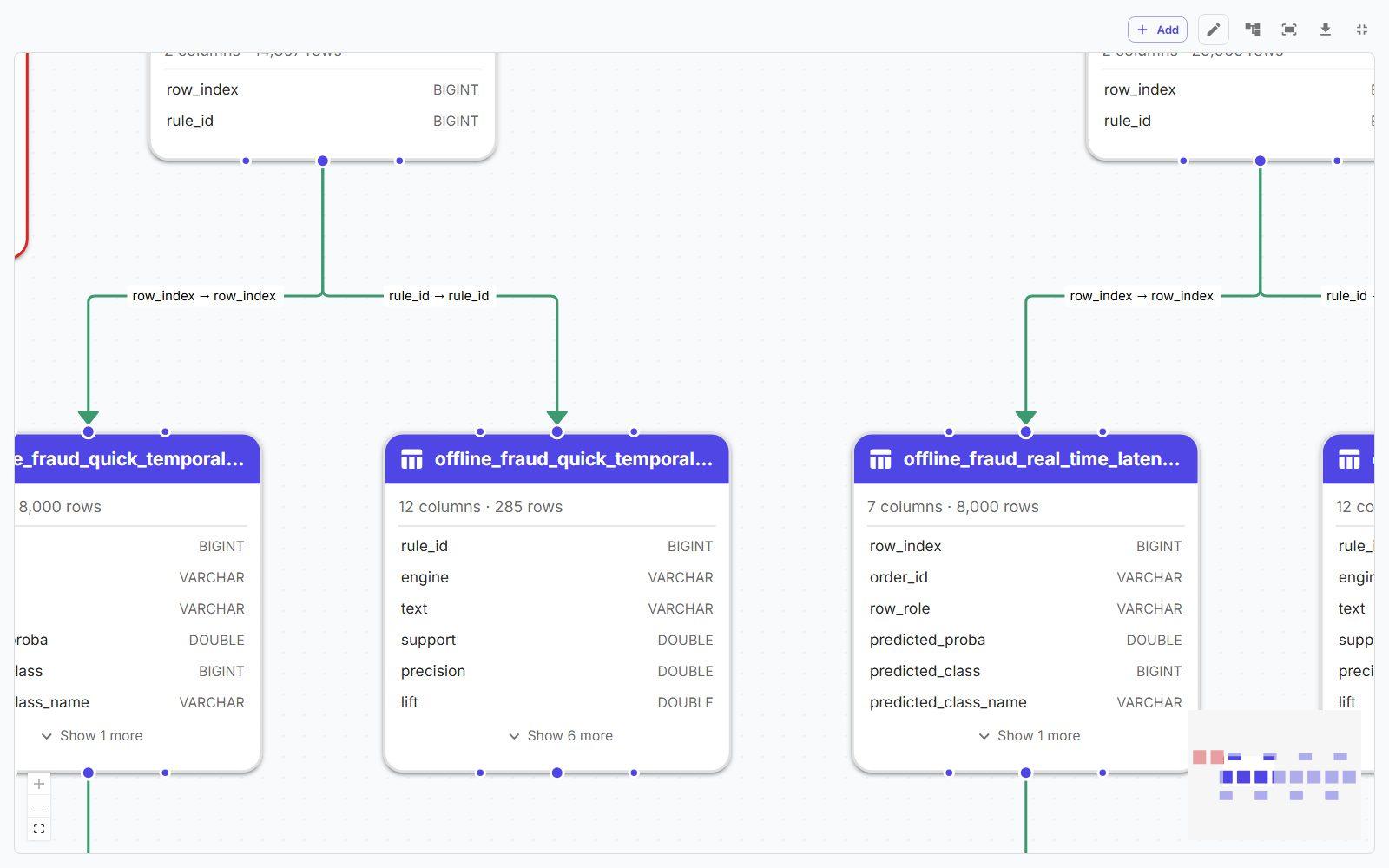
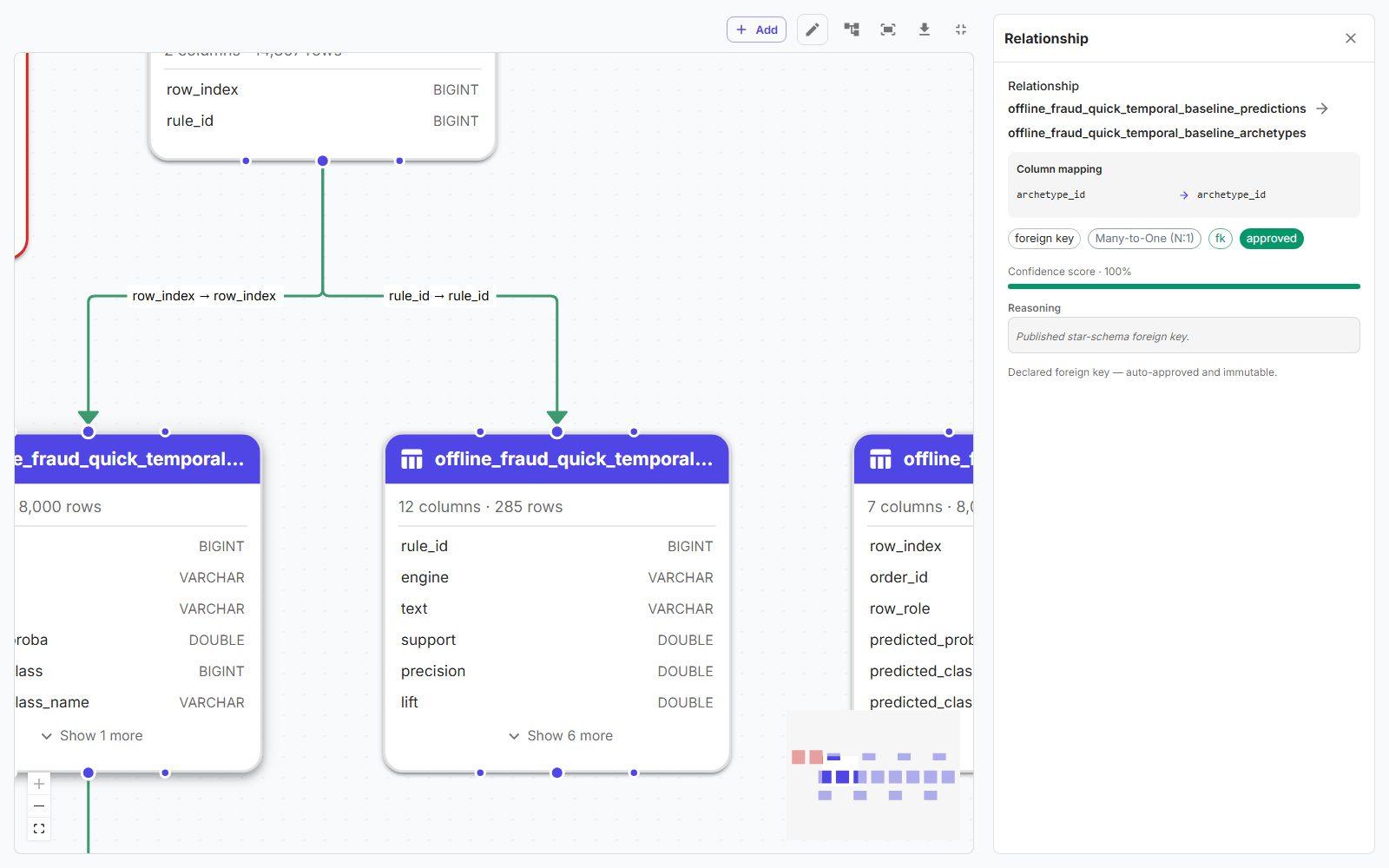
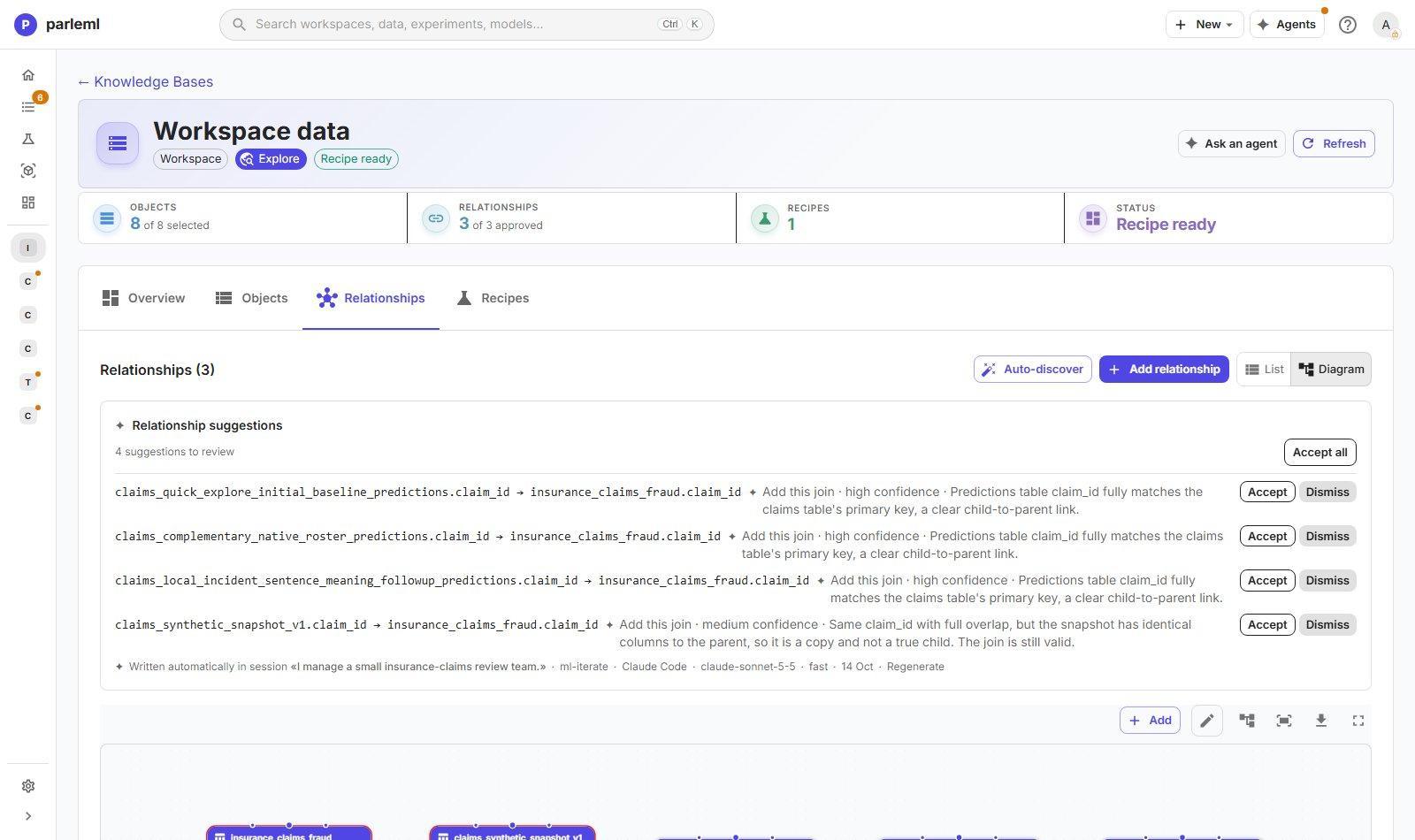
The diagram shows how results connect. For each experiment in the web-order example, predictions
link to archetypes by archetype_id, and the rules-fired table links predictions to the rules
they triggered. So "which rules fired for the cases in this archetype" is one SQL join, for you
or for an agent.
Recipes
A recipe turns a goal into a training table in three steps:
- Goal and settings. Give the Name, the Goal, the target and the Prediction moment or As-of column. The goal steers every SQL suggestion.
- The SELECT. Write it by hand, or choose Suggest SQL to draft one from the goal, the
selected tables and the approved relationships. Validate it, then Run preview to see a
page of the result. Only read-only
SELECTstatements run; anything that writes or touches files is refused. - Materialise the result as a dataset. Later, Refresh dataset re-runs the SELECT and overwrites the dataset in place, keeping its ID.
Every recipe gets a point-in-time check. ParleML reads which dated columns the SQL uses and checks each against the prediction moment. A column that could read rows dated after the moment is a leak; possible leaks are listed too. Leaks are shown first and never folded away. Your own SQL is never blocked by them, but an agent's is refused.
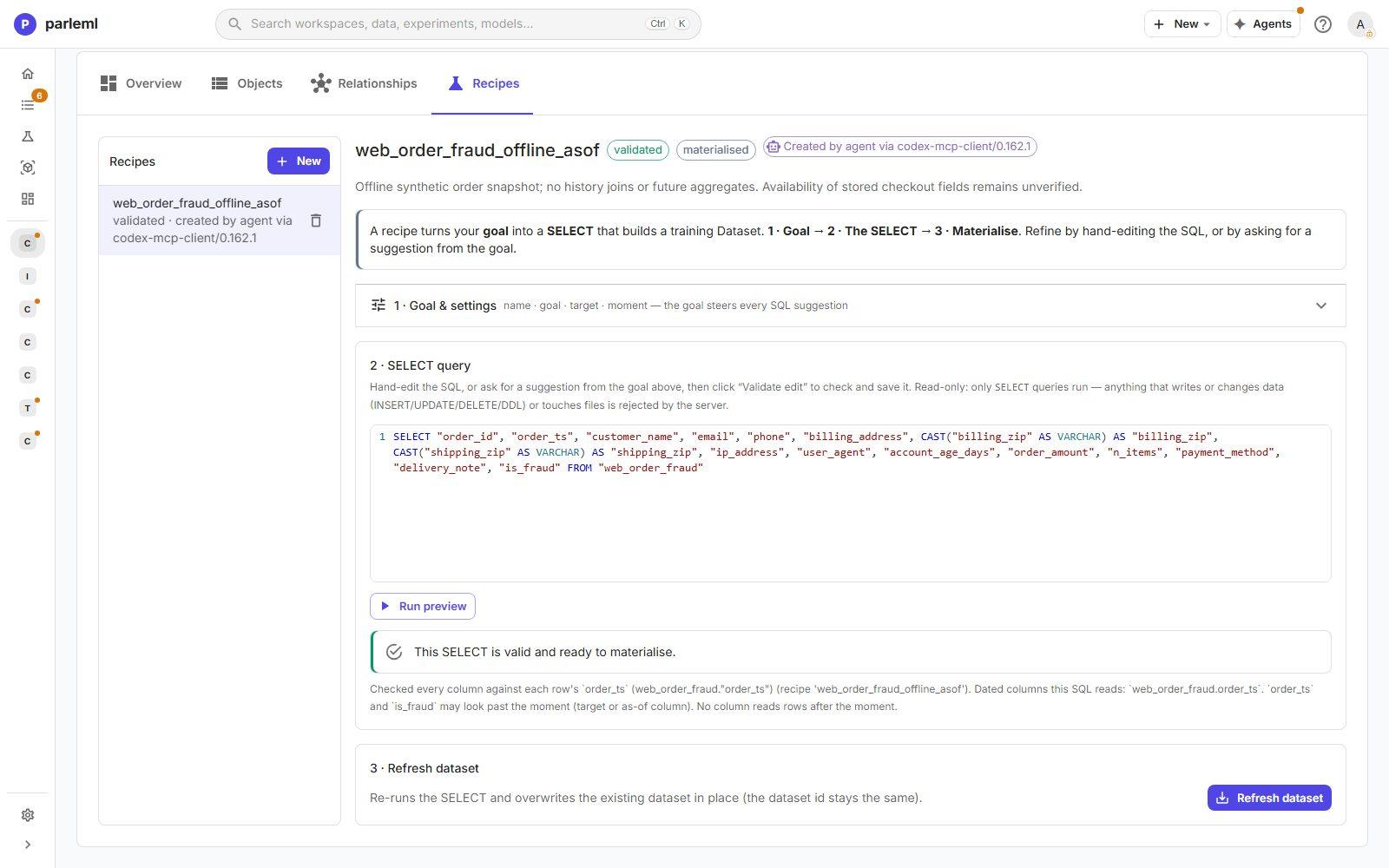
A recipe is the right place to build a point-in-time table: restrict each source to what was
known at the prediction moment, as the claims recipe does with its claim_date cut-off. A recipe
is marked validated and materialised, records who created it (here, an agent through its
MCP client), and the dataset it produces links back to it. You can also query the catalogue
read-only through the API.
With an agent
Ask an agent to prepare the data and it works through this page for you, then asks you to confirm. It:
- proposes roles, domains and descriptions;
- runs EDA and writes the Alerts summary;
- proposes leakage triage, with a note for each finding;
- runs the signal check;
- builds a recipe for the training table.
Everything it proposes appears as a suggestion or a recorded note, so you can see what it decided and why. Nothing becomes the target without you.
For the computation behind these views, see the MLI guide to EDA and leakage. For how domains become features, see the ML4 guides to stateless encoders and text and embeddings.
Next
- Which experiment fits my question?: pick the kind of model for your data.
- Experiments: set up and launch one.